March 7, 2026
- Fixed an issue where sometimes the image editor would freeze when editing an image.
- Added support for automatically clearing files from the CDN when you delete, replace, or move a file.
- Added support for bulk editing the name and field key for Content Layout fields.
March 5, 2026
- Migrated the Document app to the new administration.
- Fixed bug where categories from the wrong app instance were shown when adding and updating app items.
- Added support for bulk updating Block descriptions. You can also export and import the descriptions as a JSON file to help with updating multiple websites.
March 3, 2026
- Migrated the "SEO" section for apps to the new administration.
- Added support for copying Content Layout fields. You can copy from the "Edit field" page, or from the list of fields table.
February 28, 2026
Self-Storage
- Fixed the issue where you couldn't add an invoice for a customer that didn't have a payment method.
New admin updates
- Tags have been moved to the new admin. The Blog, Calendar, Store, and Universal app have been updated.
- Updated categories and tags to show the number of app items assigned to them when you're viewing the list of categories or tags.
February 27, 2026
Import and export block fields
You can now select and export one or more block fields as a JSON field. You can then import those fields into another block. This is very useful if you need to set up similar fields on multiple blocks or copy block fields to another website.
New admin UI updates
App Pages are now part of the new admin UI for the Blog, Calendar, Store, Storage, Trails, and Universal app.
Self-Storage merge customers
You can now merge two customers together. This is helpful if you have duplicate customer profiles. Go to the customer profile that you want to merge into, click the menu button in the top right, and then click "Merge customers". Select the customer that you want to merge. All subscriptions, invoices, transactions, and notes will be merged in and the old customer will be removed.
February 25, 2026
More things migrated to the new administration. These complete the migration of all of the items under the "Content" navigation menu.
- Content Snippets have now been migrated to the new administration. This also includes improvements to the UI when adding or editing Content Snippets.
- Page Settings have also been moved to the new administration.
February 24, 2026
Two new features to make it easier to move content between Repeating Grid and Repeating components.
Export and import Repeating Grid component values
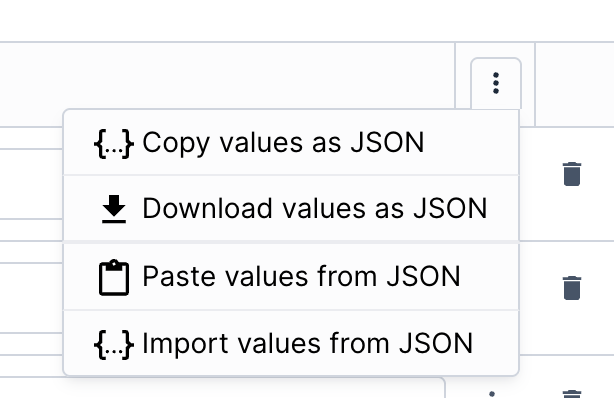
To make it easier to move content between Repeating Grid components, you can now copy the values or download the values as JSON. You can then either paste the values or import the values into another repeating grid component. If that repeating grid already has values, you will be prompted on whether to overwrite the existing values or append the new values.
Export and import Repeating component values
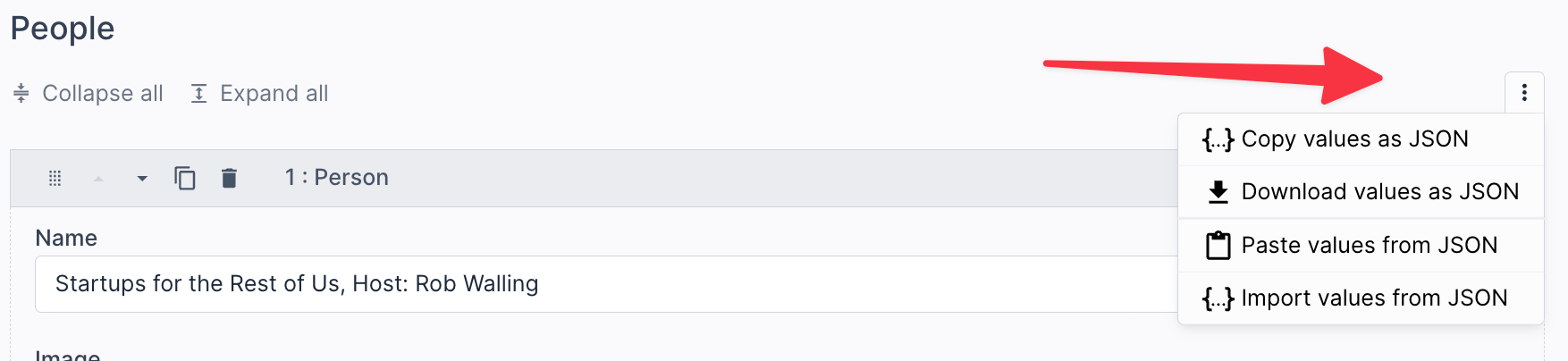
Similar to the Repeating Grid functionality, you can also copy the values from a Repeating component or download them as JSON. You can then either paste the values or import the values into another repeating component. If that repeating component already has values, you will be prompted on whether to overwrite the existing values or append the new values.
February 23, 2026
Fixed the issue where file or image attributes didn't show properly in item tables. You can edit the columns that show when viewing app items in the admin. Images and links were previously not showing correctly.
February 22, 2026
Added support for exporting one or more blocks and importing one or more blocks. Go to Design -> Blocks to do this. The blocks get downloaded as JSON.
This makes it easier to copy blocks from one website to another. Importing blocks adds new ones and does not overwrite existing ones.
You can also go to the block detail page to export a single block. You can import the JSON for a single block on that page to update and overwrite the existing block fields, settings, and template.
February 21, 2026
New features for working with file and image upload fields.
Copy the file name, URL, or image content
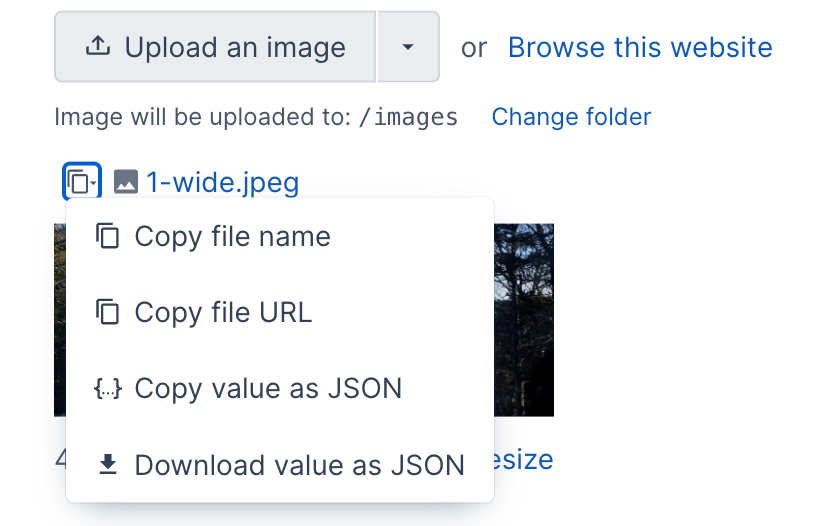
You can now copy the file name or the full URL for a file or image. It will be copied directly to your clipboard.
You can also copy the entire file or the image upload field value, or download the field value as JSON. This makes it easier to reuse or move content to another file or image upload field.
Click the "copy" icon next to the file name, then select the appropriate option in the menu.
Additional options for setting a file or image value
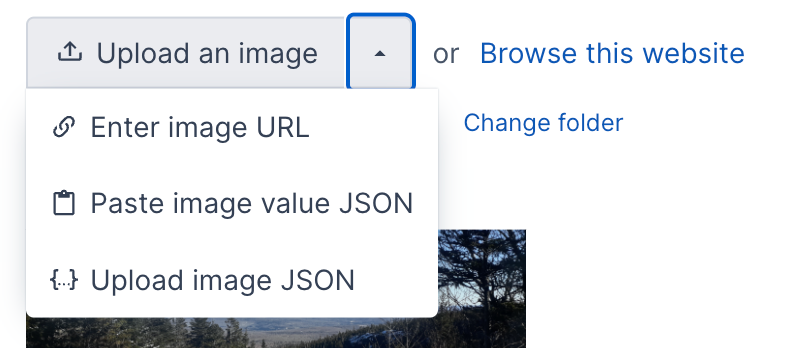
Since you can copy the value for a file or image field, you can also paste that value into another file or image upload field. This makes it really easy to copy or move values to another field. If this is your first time using it, your browser may prompt you to allow access to your computer's clipboard.
If you downloaded the value of another field as JSON, you can also upload the JSON file to set the field value. This would be an alternate method to the copy/paste method.
Enter a URL for a file or image
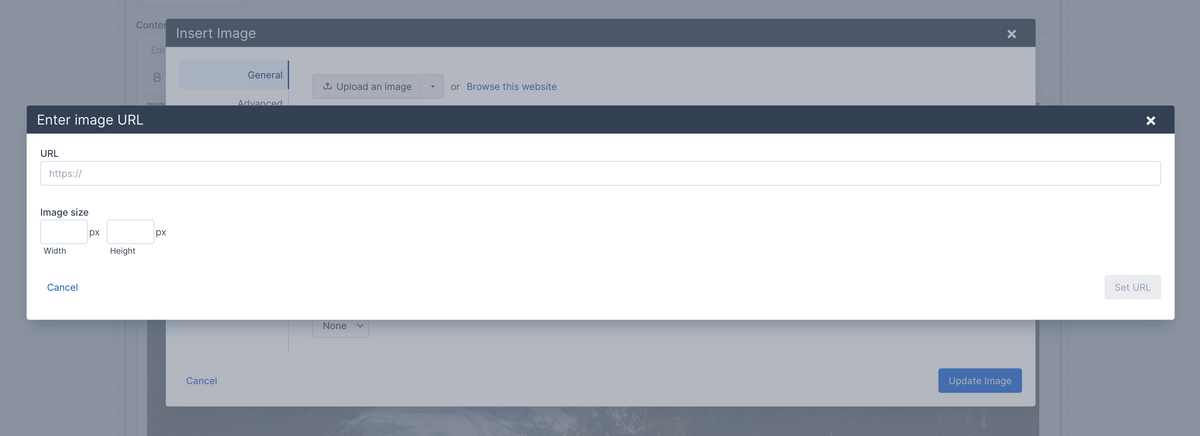
Instead of uploading an image, you can now enter a URL for a file or an image upload field. This enables you to reference content outside of your website or reference an existing website file without using the file browser.
If you are setting an image and the image URL is on the current website, it will automatically fetch the image dimensions. Otherwise, you can enter the image width and height.