Theme editor navigation improvements
We added some small but useful updates to the theme editor to improve navigation between tabs and groups.
- When going between tabs, the theme editor will now remember which group you had open and show that group when you go back to the tab.
- If you close a group, then the editor remembers your scroll position so that the group is visible again and it's highlighted.
New Color Gradient Styles
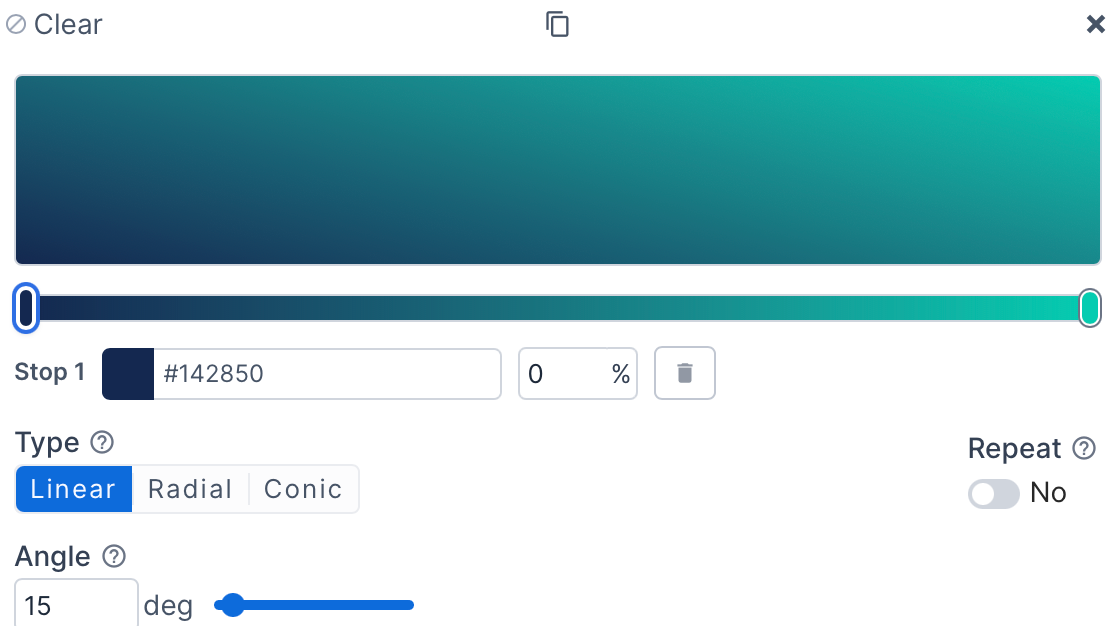
The color picker now supports gradients!
You can create gradients with any color picker, except palettes and text color (because gradients aren't supported for font colors).
There are a lot of configuration options.
- Create unlimited color stops.
- Set the gradient to repeat.
- Create linear, radial, or conic gradients.
- Adjust the angles.
- Start with preset gradient styles.
- Advanced options for blending to improve color transitions.
- Copy the CSS generated from the gradient.
Theme editor color palette improvements
We recently added a few additions and improvements to the Color Palette feature in the theme editor.
- There is now a menu button (the 3 vertical dots) next to each color palette item that lets you insert before, insert after, move to first, or move to last position. While you can still drag items up and down, this is a nice addition when you're adding to a large list. Font palettes also got this feature.
- Search the color palette.
On the color palette section you can now search by the color value or the color label. Helpful when you have a lot of colors in the palette.
You can also search the color palette when you're selecting a color in the color picker. When you choose the color palette option there is a search box at the top of the palette list that gets focus. - Add a color to the color palette from the color picker.
If you're editing a color elsewhere in the theme editor, you can now set that color to be part of the color palette right from the color picker. Go to the Palette section of the color picker and click on the "Add to palette" button at the bottom. You can set a descriptive name and set the display order (it defaults to last). - Edit an existing color palette color from the color picker.
When you're editing a color elsewhere in the theme editor, you can update an existing color palette value to be the value from the color picker. Go to the Palette section of the color picker and click on the "Update a color" button at the bottom. You can then select which palette color to update. - Set a palette color to reference another palette color.
If you've really taken advantage of the color picker then you may have a core set of colors and then reuse those colors in multiple palette colors. While this is fine, it adds more work if you ever want to change that core color. Now, a palette color can reference another palette color. When the parent color changes, all child colors are automatically updated, even when used in color pickers elsewhere. Up to ten levels of reference are supported, although that will get complicated to keep track of so we recommend trying to just link to a core set of colors.
Bulk apply page password protection configuration
When you're viewing the list of pages in the administration you can now bulk set pages to either be password protected or not password protected.
Here is how you do this:
- Go to Content -> Pages
- Click the checkbox next to one or more pages
- Click on the Bulk Edits table toolbar item and then Password Protect
- Configure the password protection and save the settings.
Change the name of the Blocks template folder
In the old administration, Blocks were called Content Builder Elements (a mouthful, we know). Blocks are a much better name and more understandable in the industry.
But, the template folder for blocks has been stuck at the legacy 'content-elements' name.
We just added support to change it to 'blocks' to match the terminology that is currently used. Go to Settings -> Theme to make this change.
When the folder is changed you will be prompted to also move your template files. If you approve of that change, the system will move the template files for you. But, you'll also want to update your local code so that it reflects this change.
Customize where Collection Widget items can be displayed
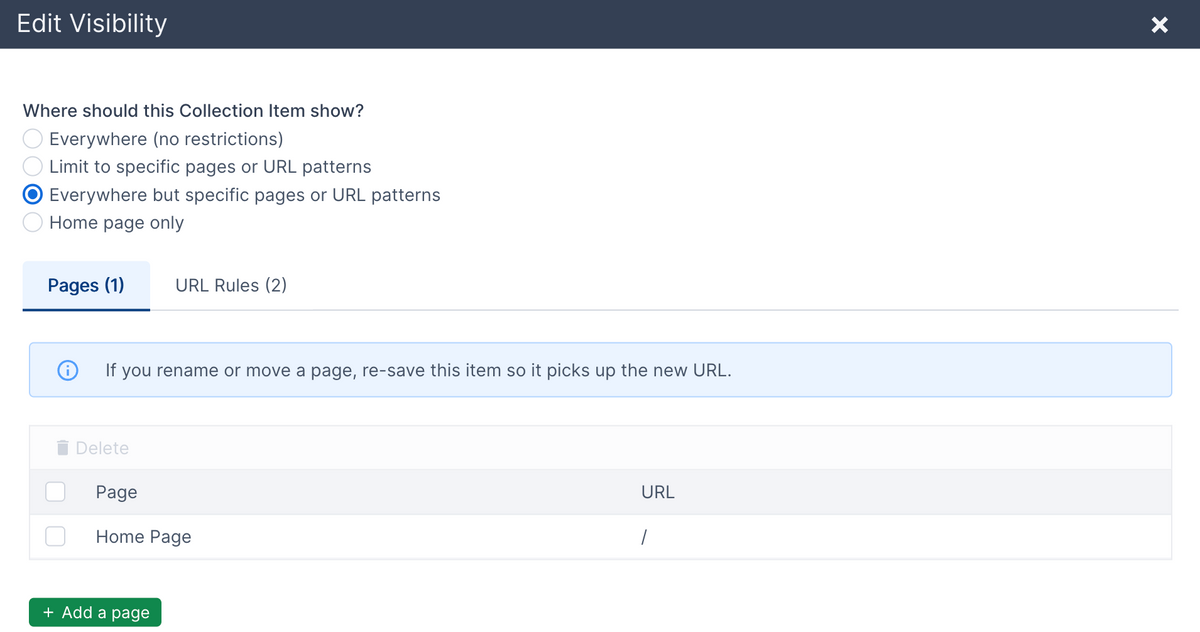
If your website is displaying a collection widget on all pages, you can now limit which pages it will show on without having to change your templates.
A practical example is if you're using a collection widget to show a notification banner at the top of all pages. Or, if you're using it to show a popup message. You don't always want those to show on all pages.
In the past you'd have to customize where a collection widget showed in the site templates.
Now, all collection widget items can be individually customized to set where they show. There are a few different options:
- Show it on all pages. This is the default.
- Limit to specific pages and/or URL patterns.
- Show everywhere but specific pages and/or URL patterns.
- Show on the home page only.
You can select specific pages or app pages to show or hide the item on. You can also set URL patterns to apply to a group of pages. The following patterns can be used:
- URL starts with
- URL contains
- URL ends with
- Exact URL
- URL path with wildcards
You can set the visibility for collection items when adding or editing an individual item. You can also bulk apply visibility settings to multiple items at the same time from the table of items.
You can also set a default visibility configuration when you add or edit the collection itself.
View Content Layout usage
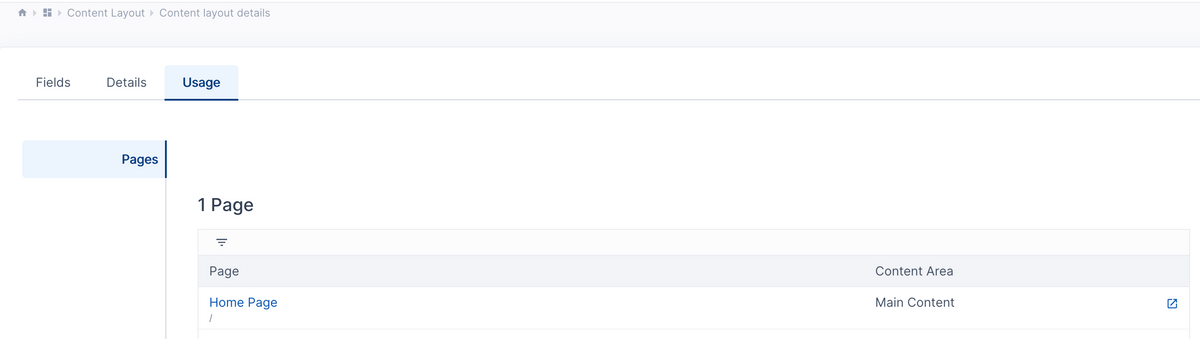
You can now easily see what is using a Content Layout. To do so, click on the Content Layout to go to it's detail page. There is now a "Usage" tab. Clicking it will show if there are any pages, content snippets, or page template configurations that use the Content Layout.
Storage app payment information updates
We added a few updates to the Storage app regarding payment information.
- When bulk processing invoices, it will now show you why a customer was not included in the list.
- Anywhere customers are show in tables (like the customer table, invoices, or subscriptions) the table will now include information about the primary payment method the customer has. This makes it easier to see if a customer has a payment method on file.
- Invoice tables now show the status of the subscription that the invoice is for. You can also filter by the subscription status.
Breadcrumbs now have their own Twig template file
This is a small improvement, but one that will help developers. The breadcrumb template has historically only been saved in the website database, but now it is also saved as a Twig template file. This means that you can track it in GIT with the rest of your templates. It gets saved to "site/breadcrumb.twig" within your theme templates folder.
Modals are now draggable and resizable
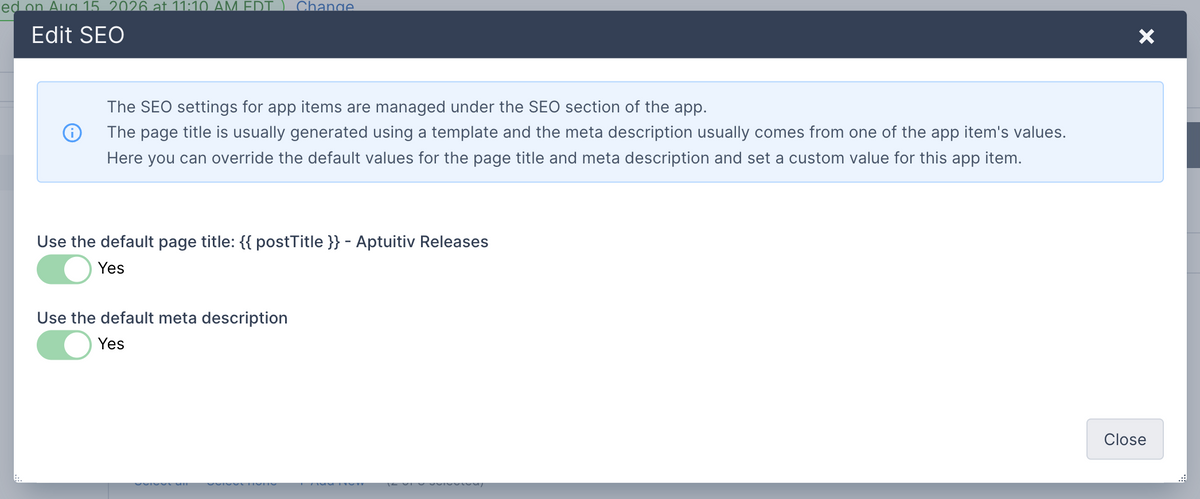
Modals, also knows as "pop ups" are used a lot in our CMS software for showing additional fields and content to update. Previously they displayed centered on the page and you couldn't change that.
Now you can drag modals around on the page by clicking the dark title bar at the top and moving your mouse around. (You can also hold down Option+Shift and use the arrows to move it around.) If the same modal is reopened then it will remember it's last position.
You can also resize modals by dragging on the left, right or bottom edges. Or drag from the bottom-right or bottom-left corners.
This is a small update, but really useful if the modal is covering up something you need to reference while working in the modal.