New feature releases
Import and export block content
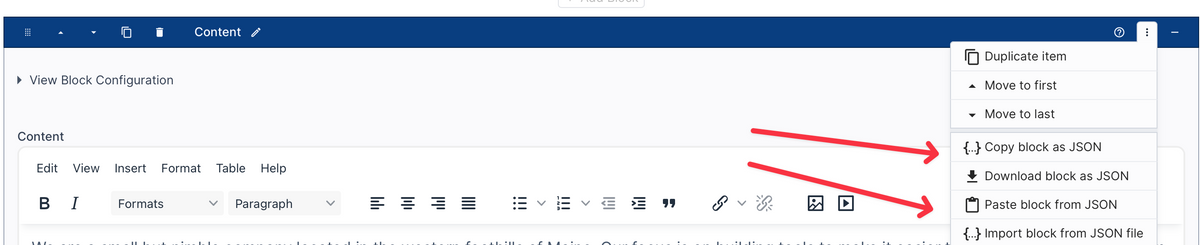
You can now export and import content for a single Block.
This enables you to more easily copy or move content to another page. Or, if you're working on a similar website, you can copy content to another site.
You can export the block content to a JSON file or to your clipboard. You'd then add the block to another page and either import the JSON file or paste the JSON from your clipboard.
If you're exporting and importing between two websites, the import will recognize if any files are involved and prompt you to migrate the files.
Multiple color and font palettes now supported
You can now create multiple font or color palettes. This update was mostly for colors, but the structure of font palettes is so similar we updated it too.
This is useful for organizing colors. You can also set up a color palette and use it only for color fields in other parts of the admin, like in Blocks.
We also added some additional features to color and font palettes, such as:
- Easily sort values alphabetically.
- Sort colors by color.
- Search across all colors and fonts in the palettes.
Search the theme editor
You can now search the theme editor!
This is a big feature, especially for websites that have a lot of styles and settings.
Searching will filter down the groups and fields that match the search. You can do simple text searches, or token-based searching for more control.
Below are the things that are searched:
| Setting names | The name of a setting, and the note underneath it. |
|---|---|
| Group and section names | Matching one of these shows everything inside it. |
| What a setting is set to | Search a color like #638C87, or a font name like Lato, to find everything using it. |
| Colors and fonts from a palette | Search the palette entry by name, or by the color or font it holds. |
| Settings inside another setting | Some settings hold several others — a text style holds a color, a font and a size. Searching any of those finds it. |
| Behind-the-scenes names | The names your developer uses, such as --MainNav-text, if you have been given one to look for. |
Token searching:
is:empty |
Fields with nothing set |
|---|---|
is:set |
Fields with a value |
is:palette |
Fields taking their color or font from a palette |
is:changed |
Fields edited since the theme was opened, saved or not |
type: |
One kind of setting — type:color, type:fontfamily. Start typing after the colon and it will show you the kinds this tab has. |
color: |
Search the color settings only. color:red is a shorter way of writing type:color red. |
font: |
Search the font settings only. font:Lato finds the settings using that font. |
palette: |
Search what a setting takes FROM a palette. palette:"Dark Brown" finds the settings using that palette color — and unlike searching for the words, not the ones merely named after it. |
To leave something out, put not: or a minus sign in front of it. not:palette and -is:palette both find the settings that are not using a palette, and -type:color leaves the color settings out.
Examples of everything you can search for
button |
Anything to do with buttons |
|---|---|
"Dark Brown" |
Words that belong together — quotes hold them as one phrase |
#638C87 |
Everything set to this color |
Lato |
Everything using this font |
--MainNav-text |
Everything a developer has tied to this name |
is:empty |
Settings with nothing filled in |
is:set |
Settings that have something filled in |
is:palette |
Settings taking a color or font from a palette |
is:changed |
Settings you have changed since opening the theme |
type:color |
Color settings |
type:font |
Font settings — the same as type:fontfamily |
type:typography |
Text style settings, which hold a color, a font and a size together |
type:border-radius |
Corner rounding settings — the punctuation does not matter |
color:red |
Color settings mentioning red |
color:"Dark Brown" |
Color settings mentioning that palette color |
font:Lato |
Font settings using that font |
palette:"Dark Brown" |
Everything actually using that palette color, whatever kind of setting it is |
not:palette |
Settings not taking anything from a palette |
-is:palette |
The same thing, written the other way |
-type:color |
Everything except the color settings |
is:empty type:color |
Color settings you have not filled in |
type:color not:palette |
Color settings holding a color of their own |
button is:empty |
Anything mentioning buttons that you have not filled in |
is:changed type:typography |
Text styles you have changed since opening the theme, saved or not |
is:pallete |
A misspelled filter still works |
pallet:brown |
So does a misspelled name in front of the colon |
New Color Gradient Styles
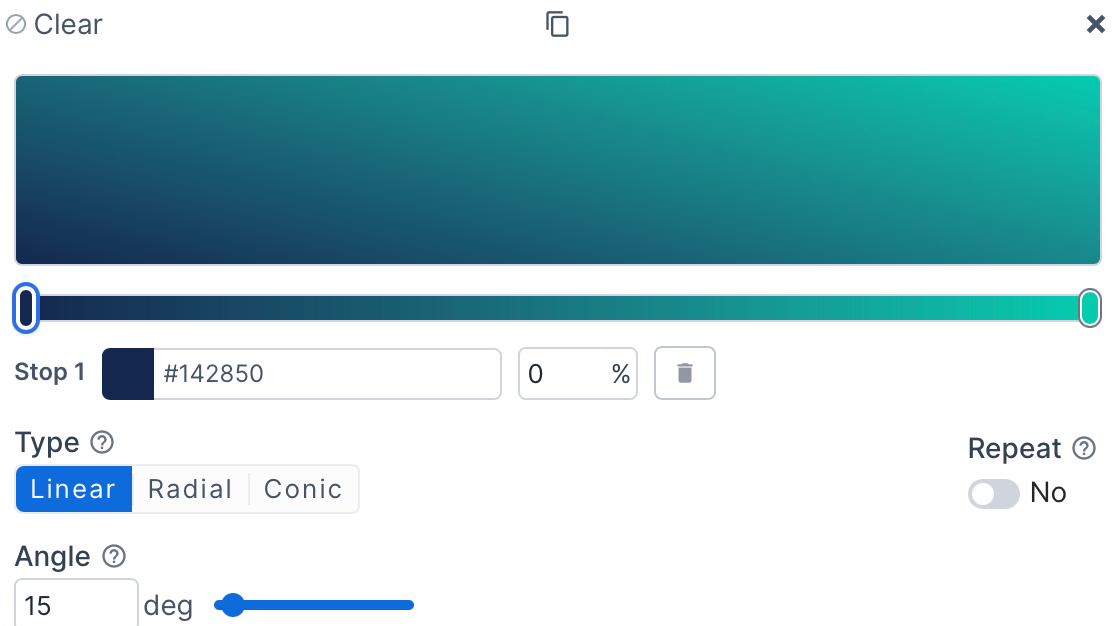
The color picker now supports gradients!
You can create gradients with any color picker, except palettes and text color (because gradients aren't supported for font colors).
There are a lot of configuration options.
- Create unlimited color stops.
- Set the gradient to repeat.
- Create linear, radial, or conic gradients.
- Adjust the angles.
- Start with preset gradient styles.
- Advanced options for blending to improve color transitions.
- Copy the CSS generated from the gradient.
Theme editor color palette improvements
We recently added a few additions and improvements to the Color Palette feature in the theme editor.
- There is now a menu button (the 3 vertical dots) next to each color palette item that lets you insert before, insert after, move to first, or move to last position. While you can still drag items up and down, this is a nice addition when you're adding to a large list. Font palettes also got this feature.
- Search the color palette.
On the color palette section you can now search by the color value or the color label. Helpful when you have a lot of colors in the palette.
You can also search the color palette when you're selecting a color in the color picker. When you choose the color palette option there is a search box at the top of the palette list that gets focus. - Add a color to the color palette from the color picker.
If you're editing a color elsewhere in the theme editor, you can now set that color to be part of the color palette right from the color picker. Go to the Palette section of the color picker and click on the "Add to palette" button at the bottom. You can set a descriptive name and set the display order (it defaults to last). - Edit an existing color palette color from the color picker.
When you're editing a color elsewhere in the theme editor, you can update an existing color palette value to be the value from the color picker. Go to the Palette section of the color picker and click on the "Update a color" button at the bottom. You can then select which palette color to update. - Set a palette color to reference another palette color.
If you've really taken advantage of the color picker then you may have a core set of colors and then reuse those colors in multiple palette colors. While this is fine, it adds more work if you ever want to change that core color. Now, a palette color can reference another palette color. When the parent color changes, all child colors are automatically updated, even when used in color pickers elsewhere. Up to ten levels of reference are supported, although that will get complicated to keep track of so we recommend trying to just link to a core set of colors.
Bulk apply page password protection configuration
When you're viewing the list of pages in the administration you can now bulk set pages to either be password protected or not password protected.
Here is how you do this:
- Go to Content -> Pages
- Click the checkbox next to one or more pages
- Click on the Bulk Edits table toolbar item and then Password Protect
- Configure the password protection and save the settings.
Change the name of the Blocks template folder
In the old administration, Blocks were called Content Builder Elements (a mouthful, we know). Blocks are a much better name and more understandable in the industry.
But, the template folder for blocks has been stuck at the legacy 'content-elements' name.
We just added support to change it to 'blocks' to match the terminology that is currently used. Go to Settings -> Theme to make this change.
When the folder is changed you will be prompted to also move your template files. If you approve of that change, the system will move the template files for you. But, you'll also want to update your local code so that it reflects this change.
Customize where Collection Widget items can be displayed
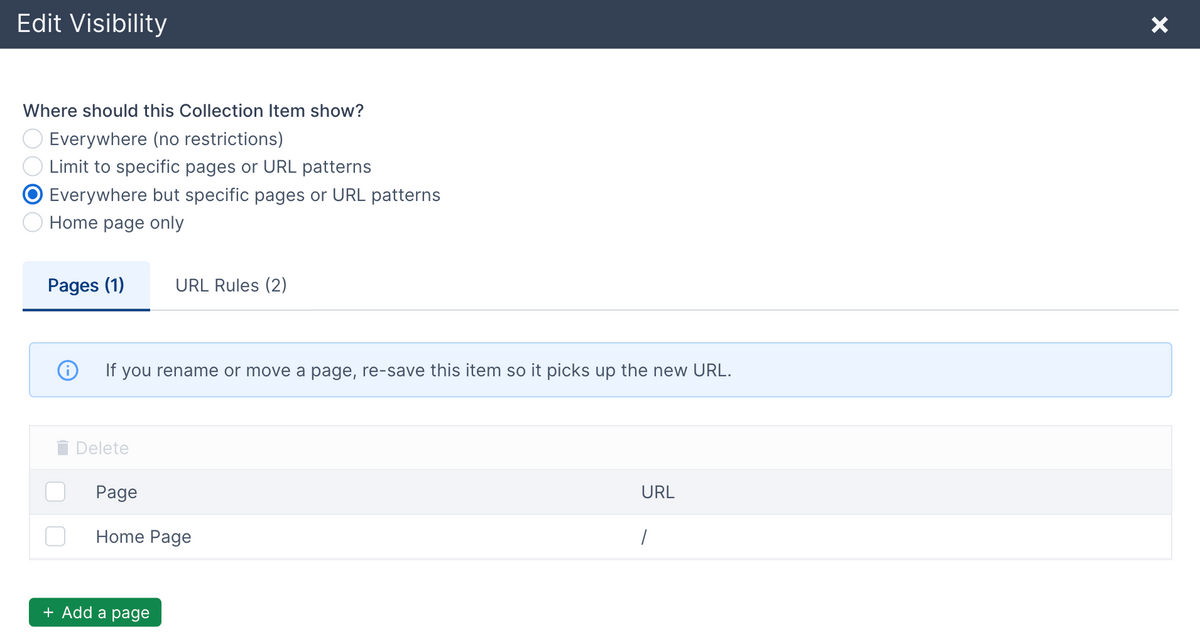
If your website is displaying a collection widget on all pages, you can now limit which pages it will show on without having to change your templates.
A practical example is if you're using a collection widget to show a notification banner at the top of all pages. Or, if you're using it to show a popup message. You don't always want those to show on all pages.
In the past you'd have to customize where a collection widget showed in the site templates.
Now, all collection widget items can be individually customized to set where they show. There are a few different options:
- Show it on all pages. This is the default.
- Limit to specific pages and/or URL patterns.
- Show everywhere but specific pages and/or URL patterns.
- Show on the home page only.
You can select specific pages or app pages to show or hide the item on. You can also set URL patterns to apply to a group of pages. The following patterns can be used:
- URL starts with
- URL contains
- URL ends with
- Exact URL
- URL path with wildcards
You can set the visibility for collection items when adding or editing an individual item. You can also bulk apply visibility settings to multiple items at the same time from the table of items.
You can also set a default visibility configuration when you add or edit the collection itself.
View Content Layout usage
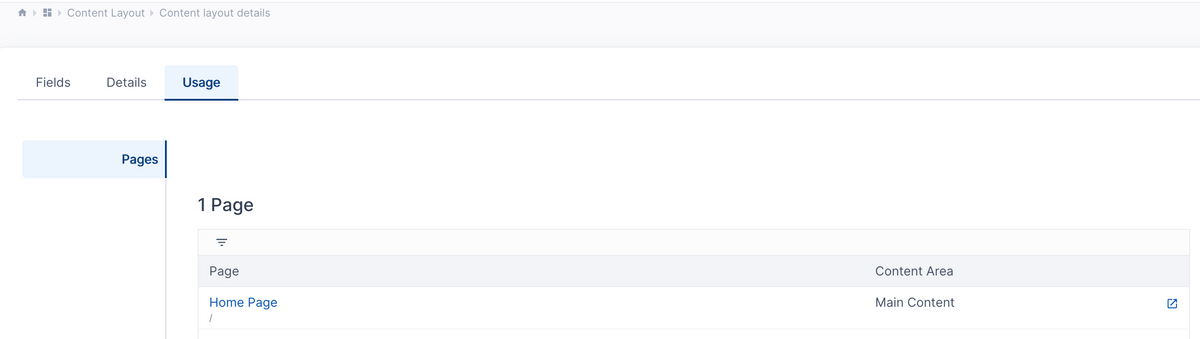
You can now easily see what is using a Content Layout. To do so, click on the Content Layout to go to it's detail page. There is now a "Usage" tab. Clicking it will show if there are any pages, content snippets, or page template configurations that use the Content Layout.
Modals are now draggable and resizable
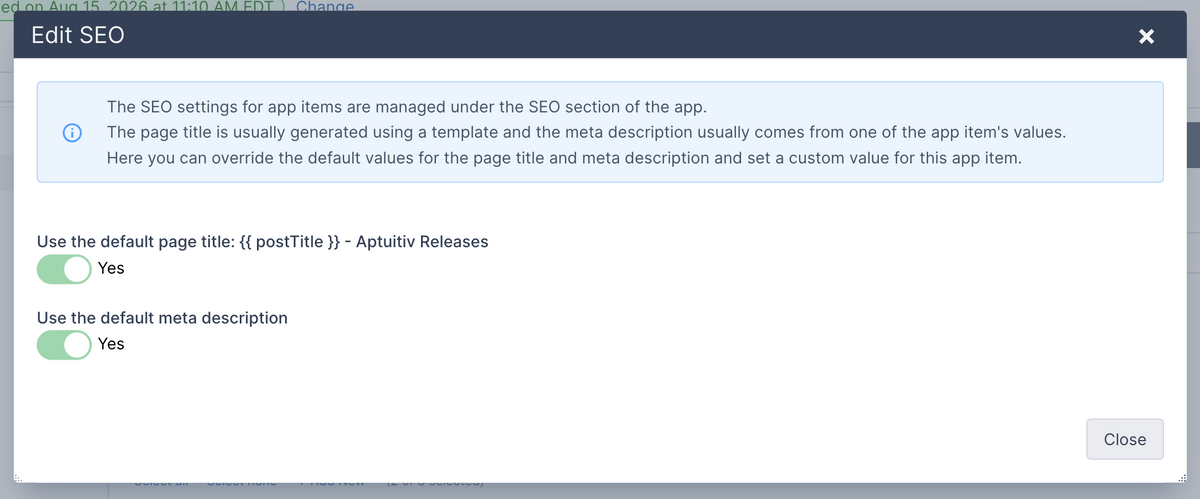
Modals, also knows as "pop ups" are used a lot in our CMS software for showing additional fields and content to update. Previously they displayed centered on the page and you couldn't change that.
Now you can drag modals around on the page by clicking the dark title bar at the top and moving your mouse around. (You can also hold down Option+Shift and use the arrows to move it around.) If the same modal is reopened then it will remember it's last position.
You can also resize modals by dragging on the left, right or bottom edges. Or drag from the bottom-right or bottom-left corners.
This is a small update, but really useful if the modal is covering up something you need to reference while working in the modal.
Page Attributes for Custom Page Data
Most of the time, the existing fields for Pages, Blocks, or Content Layouts give you what you need to build the content for your pages and display your pages.
But once in a while, you may need something more custom. An example could include changing the logo in the header for specific pages or maybe changing a button in another template.
The solution to this is the new Custom Page Attributes functionality. For developers, this is similar to attributes on app items.
The attributes will show up last in the list of content to edit for a page. They can be organized by Attribute Groups. The default Attribute Group is called "Attribute Groups". You can rename it or add new ones if you want.
To use this, go to Content -> Page Settings. Then click on "Attributes".
There you can add new attribute fields.
When you edit a page the fields will show below the other fields for the page content.
To use in your templates, you'll use the new {{ _page.attributes }} variable. (You can also use the shorter {{ _page.attr }} if you want.) If your variable is called "Logo" then you'll access it like this:
{{ _page.attributes.logo }} or {{ _page.attr.logo }}.
The power behind this is that the _page variables are global, so they can be used in any template that is used to display the page.
New Options for Category and Tag Fields
When assigning categories or tags to app items, you can now add a new category or tag. Click the "Add New" button below the field label and a modal will open where you can add the category or tag.

After it's added, the new category or tag will show at the bottom of the list and be automatically selected. If you assign the category to a parent category, then it will show under the current parent category.
Other new features with these fields include:
- Click the checkbox icon (second one from the left) to filter the list of categories or tags and only show the selected ones. This is useful when you have a large list and you need to easily see what's already selected.
- The toolbar now shows the number of categories or tags selected.
- If the category list has any subcategories, then they show as collapsible items. You can expand or collapse all of them. By default, they are all expanded.
Bulk Remove Category or Tag Assignments
If an app has support for categories or tags, then you could already bulk assign categories or tags to an app item. There have been three options for bulk assigning:
- Assign the newly selected categories or tags to the app item.
- Replace existing categories or tags with the selected ones.
- Remove all categories.
There is now a fourth option.
Now you can remove one or more selected categories or tags.
This allows you to select one or more app items and in one step remove one or more category assignments.
Here is how you can use this. We'll use Categories as an example (tags have a nearly identical flow).
- Go to your app and view the app items (like Blog Posts or Store Products).
- Click the checkbox next to one or more app items.
- At the top of the table, click the "Assign" button, then "Assign Categories".
- On the next page, select the "Remove the selected categories and keep other category assignments" option.
- Select the category or categories to remove.
- Click the "Save Category Assignment" button in the upper right.
Replace Images and Files When Uploading
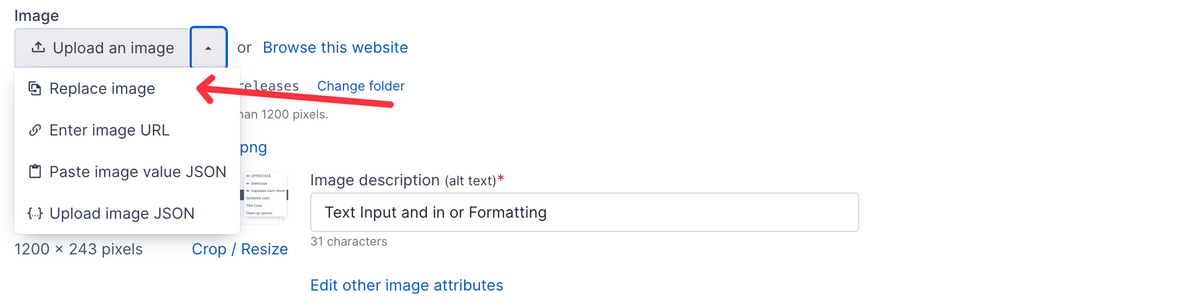
Historically, if you wanted to replace an existing image, you had to first go into the File Browser and delete the image. Then upload the new image.
Same process for replacing files. (Below talks about images - the file upload field has the same functionality.)
Now, there are two ways to replace an existing image.
First, you can click the menu icon next to the upload button and select "Replace image".
This will do a few things:
- The file upload will be restricted to the same file type as the existing image. For example, if it's a JPG image, then you'll only be able to upload JPG images.
- The new image will be renamed to the same file name as the existing image.
- The existing image will be cleared from the CDN automatically so that pages get the new image.
The other way to replace an image or file is to upload a new one with the exact same name. If that happens, you'll be prompted to confirm that you want to replace the file before the image is uploaded.
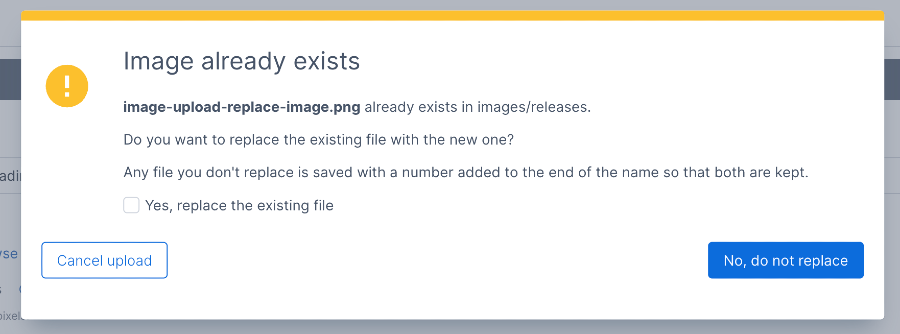
Three things can happen here.
- Click the "Cancel upload" button to cancel uploading and select a different file.
- Click the "No, do not replace" button to upload the new image, but have the system prefix a number to the end to keep it separate from the existing image.
- Click the "Yes, replace the existing file" checkbox, then click the button on the bottom right. (It'll change to "Replace existing file" and turn red). This will replace the image just like described above.
Hopefully this streamlines your workflow a little bit.
Copying content improvements
We have improved copying app items and other content. Previously, the system would have copied the item behind the scenes and then taken you to the "edit" form.
Now, copying is essentially like adding a new app item, but with the form filled in. Using blog posts as an example, when you copy a blog post a new form will show in a modal and be filled in with the content from the post that you're copying. You can then make any changes and save the new post.
You can also copy app items from two or three spots, depending on the app.
- From the list of app items, click the "three-vertical dots button" and then "Copy".
- From the "Edit" form, click on the "Actions" menu button and then on "Copy".
- If the app has a detail page (like Collection Widgets), then you can copy from there too.
Almost all apps now have extensive copy functionality.
We hope that this gives more flexibility and streamlines copying.
Added support in the file browser for removing a file from the CDN
Added support in the file browser for removing a file from the CDN. When a file is deleted or updated, it's removed from the CDN. This new feature helps in rare cases when the file still exists in the CDN.
To use this, click on the file in the browser. In the right-side panel, click the menu button next to the view/download link.
Text input fields now have a format option to them
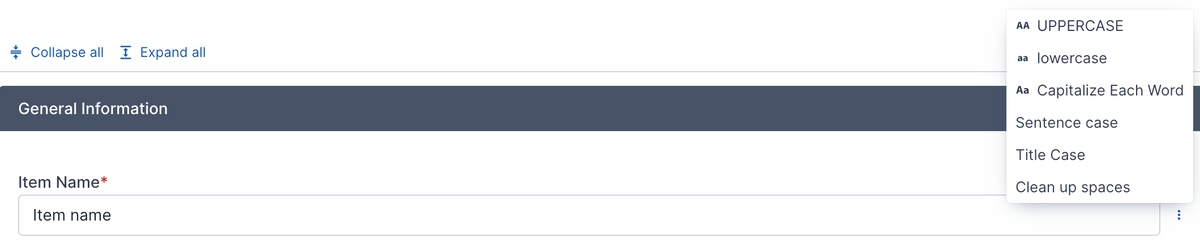
Text input fields now have a format option to them. When you hover over a text input field or click into it, a menu button shows after the field. Click the button and options to format the text show. You can do the following:
- UPPERCASE: Convert all letters to uppercase.
- lowercase: Convert all letters to lowercase.
- Capitalize Each Word: Make sure that the first letter in each word is capitalized. Other letters are lowercased.
- Sentence case: Capitalize the first letter in each sentence (or the start of the text) and lowercase everything else.
- Title Case: Capitalize the first letter of each word except for small words like "is", "and, "in", "or".
- Clean up spaces: Remove any spaces before or after the text and redundant spaces between words.
Importing themes and editor accessibility improvements
- Added support for importing theme data.
- Added a context menu to the editor for images and links.
- Added support for setting the "aria-label" attribute on navigation items.
- Added accessibility capabilities to the editor:
- Added support for setting the "role" attribute on tables.
- Added support for setting the "lang" attribute on elements.
More support for importing and exporting content as JSON
Added support for exporting and importing more content as JSON.
- Content areas can now be exported and imported.
- Navigation menus can now be exported and imported.
- Content layouts and content layout fields can now be exported and imported.
New Store app reports
Add Store app reports. You can now view store orders for different date ranges, compare against the previous period, view top products ordered, and view products ordered in different time periods.
Store app product improvements
- Improvements for managing store product options, modifiers, and SKUs and their pricing.
- Added support for store product location-based pricing. You can price products differently based on a customer's postal code, county, state, or country.
- Improved support for copying product SKU and modifier pricing from other products.
- Added support for setting a town on a Postal Code location value.
- Multiple UI improvements.
June 6, 2026
Bug fixes
- Pages - Fixed an issue where adding a new page didn't get a default content layout assigned.
Improvements and new features
- Pages - Added support for setting a default block for a content area when adding a new page.
- Store - Added support for bulk assigning a sale price.
Bulk upload images for the Repeating field
We just released a new feature to streamline adding images or files to your pages.
If you have a Repeating field that lets you add one or more images or files, you can now bulk upload them and have them automatically added to the field.
For example, you may have an "Images" field where you can add multiple image items. You can now select multiple images from your computer and upload them at once. The alternative is to add a new item, upload an image, and repeat.
If your repeating field has an image or file upload, you'll now see an upload button to the right at the top of the field. Click that to get started.

A pop-up will open where you can upload the images. If the repeating field has more than one upload field type (like an image and a file upload) then you can select which field you're uploading to. Click the "Select files to upload" button to select one or more files from your computer.
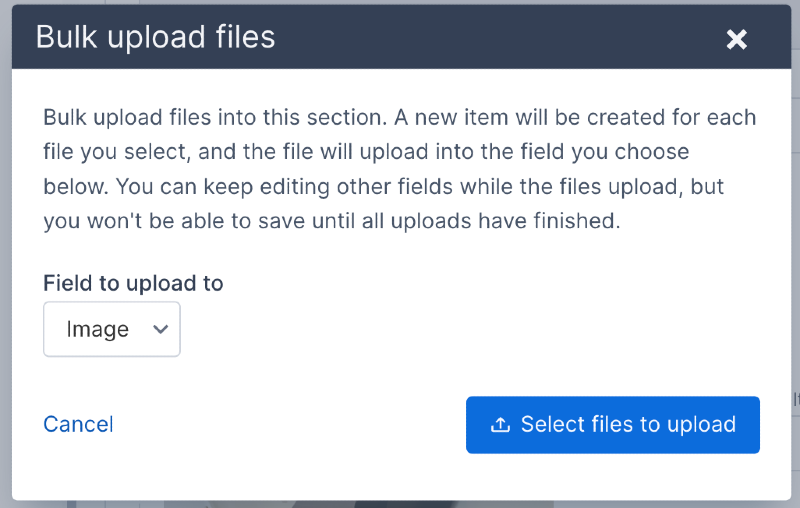
Once you've selected the files, the pop-up will automatically close, and the new items will be added. Your browser will automatically scroll down to the first item that was added.
If the repeating field doesn't have any values yet, then the empty first item will be replaced, and new items will be added after that.
If the repeating field has one or more items that already have values, then the new items will be added after the last item.
May 28, 2026
A few new features for the Self Storage app.
- You can now delete and edit payment methods. When editing, you can change everything but the credit card. This is useful if you need to update the billing address or expiration date. If you need to change the credit card, add a new one instead.
- If there are multiple payment methods, you can now change which one is the primary payment method.
May 22, 2026
Improved how error messages are displayed to be more helpful. Also added support for clicking on an error message and scrolling to the field that has the error.
Updated all add/edit forms for app items to use the new accordion view to display groups. This keeps the fields in a linear section and makes it easier to search for fields and scroll.
New image scanner for website accessibility
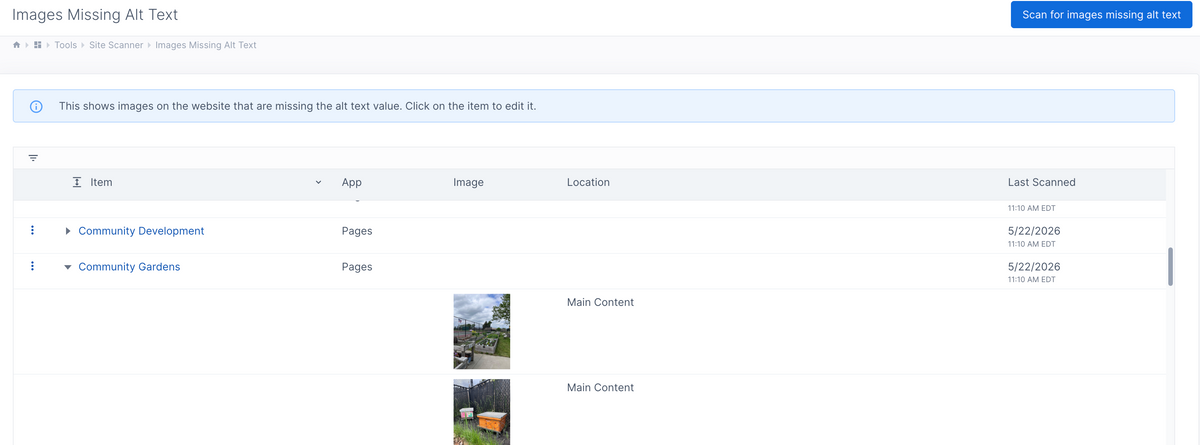
Added a new tool to help with improving website accessibility.
You can now scan the website and find images that are missing the alt text value.
Go to Site Manager -> Tools -> Site Scanner.
This will scan the content stored for each page, app item, content snippet, template, and collection widget and find any images that are missing alt text. If there are any images missing alt text, then they show in a table with a link to the page. You can expand the row to see which images are missing alt text. The images show the general area of the page where they are located.
Require alt text for images to improve accessibility

Added support for requiring the alt text for images when adding and editing content. This helps to enforce accessibility requirements with images.
Image alt text is used by screen readers to describe an image and is important for maintaining accessibility.
Go to Settings -> Images to enable this. (For existing websites, this is off; for new websites, this will be enabled by default.)
The following will happen when this setting is enabled:
- When adding or editing an image in the rich text editor, the image description (alt text) field will now be required. You can't close the image popup until you enter some alt text.
- Image upload fields will require that the image description (alt text) field be filled in.
- When submitting the form, image upload fields will be validated to ensure that their alt text is filled in.
There is some flexibility with the image upload fields. Sometimes, the alt text is always set in a template. In that case, you can configure the upload field not to require alt text. Usually, in that case, you also want to hide the alt text field, which you can do by editing the field configuration.
May 13, 2026
Self-storage: Improved handling of incomplete subscriptions. A subscription can be incomplete if a customer signed an agreement but didn't pay for it.
- Added admin support for deleting incomplete subscriptions.
- Added admin support for activating an incomplete subscription.
May 6, 2026
Collection Widgets have been migrated to the new administration. This brings UI improvements and some new functionality, such as improving the process of copying Collections, Items, Fields, or Templates. We have more new features planned, and this gives us a better foundation to build on.
There is now a new way to set up admin fields to conditionally show based on the value of another field. Previously, you had to set up a "Select Display" field. This limited the controlling field to only a select menu, and all of the logic was in that one field. Now, with any field that isn't an app default field, you can set the conditional display with that individual field. You can select a checkbox, radio, select menu, multi-select, or switch (Select yes/no) field to be the trigger.
We also added support for this new conditional display functionality to work with Blocks. Previously, only app attributes and Collection Widgets had this functionality. Now Blocks do as well.
April 24, 2026
- Added support for a State field to be linked to a Country field. This allows custom attributes to be linked so that when a Country field changes, the State field loads the states or provinces for the selected country.
- Fixed an issue with resizing images where sometimes the new dimensions weren't passed back to the admin field and consequently aren't saved with the updated image.
April 21 2026
- Added new "Phone" field type. This allows structured data for phone values such as area code, phone number formatting, and extensions.
- UI improvements to admin navigation.
- Store product administration improvements.
- Added Universal App settings in the new administration.
April 13, 2026
Initial release of the new Boards app to manage boards, board members, and board meetings.
April 7, 2026
Finished migrating the user permission management to the new administration. Websites on the Pro plan can now manage admin access permissions for Website Editor users.
April 2, 2026
Self-Storage app updates:
- Added support for viewing subscriptions and invoices by building, unit, or unit type.
- Added support for updating a subscription to the current unit type price.
- The subscription list and detail page now show if the subscription is a different price than the unit type price.
- Added support for editing a subscription invoice.
March 27, 2026
Added "Unavailable Units" report to the Self-Storage app.
Updated Calendar Events admin to support event registration fields. The old admin had this, and now the new admin UI does too.
March 21, 2026
Self-storage app updates
- Renamed Unit Groups to Buildings.
- Added support for images as a default attribute for buildings, locations, units and unit types.
- Migrated more settings pages to the new administration.
March 20, 2026
- Improvements to how public accounts and customer accounts are created and managed.
- Fixed a bug where a username and password wouldn't sometimes be set up for a new customer account.
March 14, 2026
Self-storage app updates
- When adding or editing a customer, you can now edit the customer address, company name, alternate name, and additional phone numbers.
- Importing Customers, Buildings, Locations, Units, and Unit Types works in the new admin.
- Added support for editing the storage subscription start date.
- Added a new Notes section to view, delete, and update notes that are added to customers, subscriptions, transactions, or invoices. You can also change the author for a note.
- Notes can now be moved from a customer to a subscription and vice-versa.
- Notes can now be imported.
February 27, 2026
Import and export block fields
You can now select and export one or more block fields as a JSON field. You can then import those fields into another block. This is very useful if you need to set up similar fields on multiple blocks or copy block fields to another website.
New admin UI updates
App Pages are now part of the new admin UI for the Blog, Calendar, Store, Storage, Trails, and Universal app.
Self-Storage merge customers
You can now merge two customers together. This is helpful if you have duplicate customer profiles. Go to the customer profile that you want to merge into, click the menu button in the top right, and then click "Merge customers". Select the customer that you want to merge. All subscriptions, invoices, transactions, and notes will be merged in and the old customer will be removed.
February 24, 2026
Two new features to make it easier to move content between Repeating Grid and Repeating components.
Export and import Repeating Grid component values
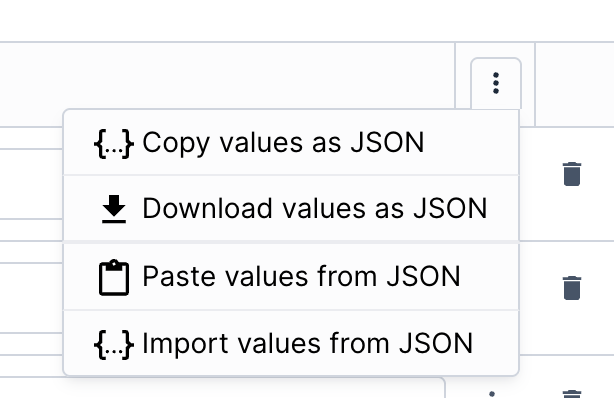
To make it easier to move content between Repeating Grid components, you can now copy the values or download the values as JSON. You can then either paste the values or import the values into another repeating grid component. If that repeating grid already has values, you will be prompted on whether to overwrite the existing values or append the new values.
Export and import Repeating component values
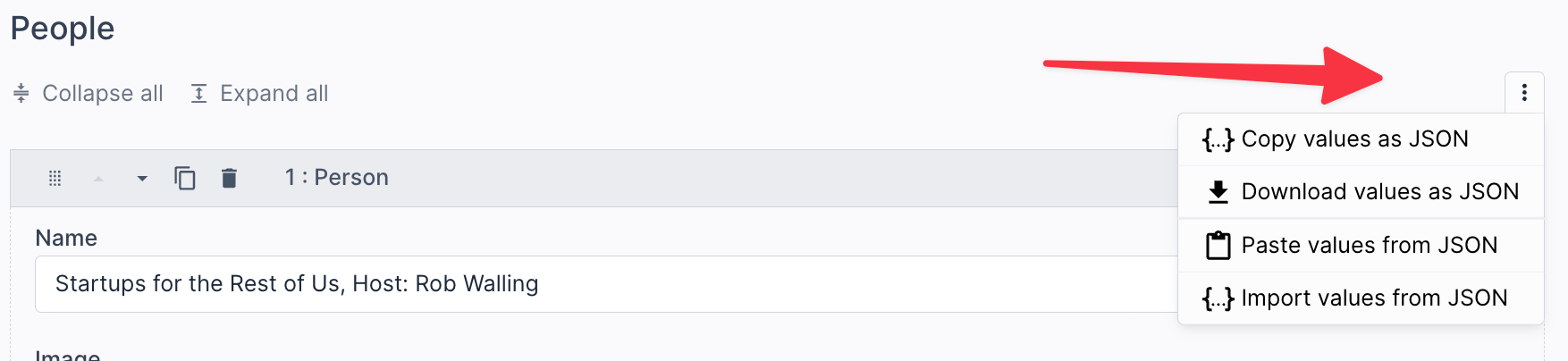
Similar to the Repeating Grid functionality, you can also copy the values from a Repeating component or download them as JSON. You can then either paste the values or import the values into another repeating component. If that repeating component already has values, you will be prompted on whether to overwrite the existing values or append the new values.
February 22, 2026
Added support for exporting one or more blocks and importing one or more blocks. Go to Design -> Blocks to do this. The blocks get downloaded as JSON.
This makes it easier to copy blocks from one website to another. Importing blocks adds new ones and does not overwrite existing ones.
You can also go to the block detail page to export a single block. You can import the JSON for a single block on that page to update and overwrite the existing block fields, settings, and template.
February 21, 2026
New features for working with file and image upload fields.
Copy the file name, URL, or image content
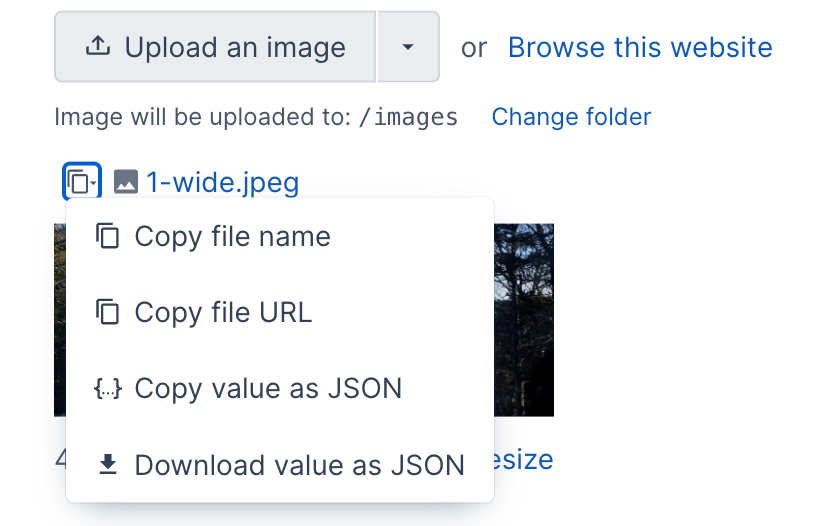
You can now copy the file name or the full URL for a file or image. It will be copied directly to your clipboard.
You can also copy the entire file or the image upload field value, or download the field value as JSON. This makes it easier to reuse or move content to another file or image upload field.
Click the "copy" icon next to the file name, then select the appropriate option in the menu.
Additional options for setting a file or image value
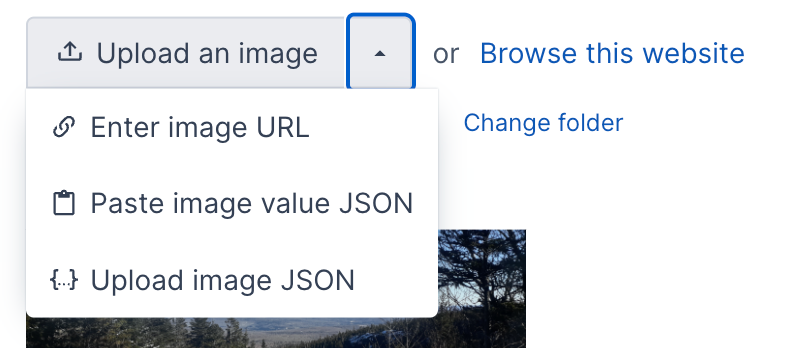
Since you can copy the value for a file or image field, you can also paste that value into another file or image upload field. This makes it really easy to copy or move values to another field. If this is your first time using it, your browser may prompt you to allow access to your computer's clipboard.
If you downloaded the value of another field as JSON, you can also upload the JSON file to set the field value. This would be an alternate method to the copy/paste method.
Enter a URL for a file or image
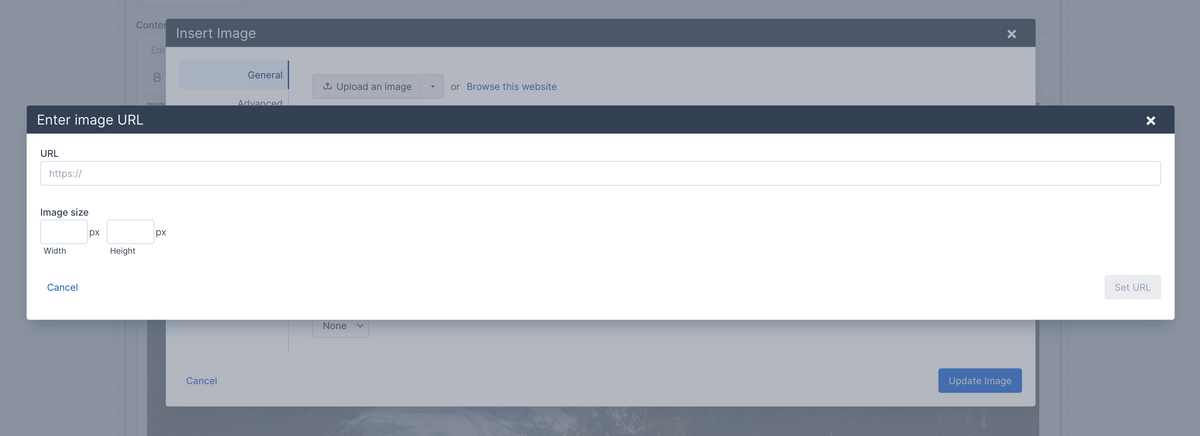
Instead of uploading an image, you can now enter a URL for a file or an image upload field. This enables you to reference content outside of your website or reference an existing website file without using the file browser.
If you are setting an image and the image URL is on the current website, it will automatically fetch the image dimensions. Otherwise, you can enter the image width and height.
February 5, 2026
User management updates
- Added support for inviting a user to an account.
- Added support for unassigning a user from multiple domains when viewing the user profile.
- Added support for clearing the user configuration values. (User configuration is used for the user interface configuration. For example, which columns to sort a table by. None of it is critical information, and it's safe to clear.) View your user details to clear.
Self-storage app updates
- Updated the subscription page to improve how the information is displayed. We're now using tabs to show the subscription details, invoices, and transactions. This also includes information about whether the customer has a payment method on file when viewing invoices.
- Updated the way a failed payment notification is displayed on the invoice payment page. It no longer shows in the upper right, which could hide the payment button.
- Updated the invoice detail page to improve how the invoice and invoice transactions are displayed. If the customer does not have a payment method then that is displayed, and a link to record a payment is shown.
Bug fix
- Fixed the issue where the form error wasn't automatically hidden after leaving the form and navigating to another page.
February 4, 2026
We have released several updates to the user management functionality in Aptuitiv. Some of the highlights include:
- You can access the new user management from three spots.
- From your dashboard, click the website you want to manage users for.
- If you're logged into a website, click the "Users" navigation item at the top, then select "Admin Users."
- If you're logged into a website, you can also click the User icon in the top-right and then select "Manage website users".
- You can view users and domains in each account.
- You can remove users from an account or domain.
- There is a new "Website Admin" user type that has full access to the domains it's assigned to and can manage users for that domain.
- You can now set the user type when inviting a user.
- User types permissions are enforced. The Website Editor user type can only view information.
January 20, 2026
Invite users in the new administration
We've been working on our new administration for a while, and some clients are using it. We've focused on the content editing functionality first, which meant user management was left out. Websites on the old admin still have user management features, but websites on the new administration don't.
They do now.
Because the new administration enables a user to be part of multiple domains and accounts, the user management functionality is quite different.
Instead of just adding a user and setting their full details, you now invite a user by entering their email address. If they are a brand-new user in the entire Aptuitiv system, you can optionally enter their first and last name. The user will then get an email inviting them to join your website. If they are a new user they will need to enter their name and password when accepting the invitation. If they already have an Aptuitiv account, then they can just accept the invitation, and then they will have access to the website.
Here is how you do it.
- On the dashboard, click on the website that you want to invite a user to.
- Click on the "Invite User" button in the upper right.
- Fill out the form and submit it to invite the user.
If you don't see the "Invite User" button, then you might not have the right user permissions. Contact the administrator of your account or contact our support team for assistance.
This is just the initial release of user management. We're working on different user roles within an account, inviting users to an account instead of individual domains, user permissions, and more user-editing capabilities.
December 18, 2025
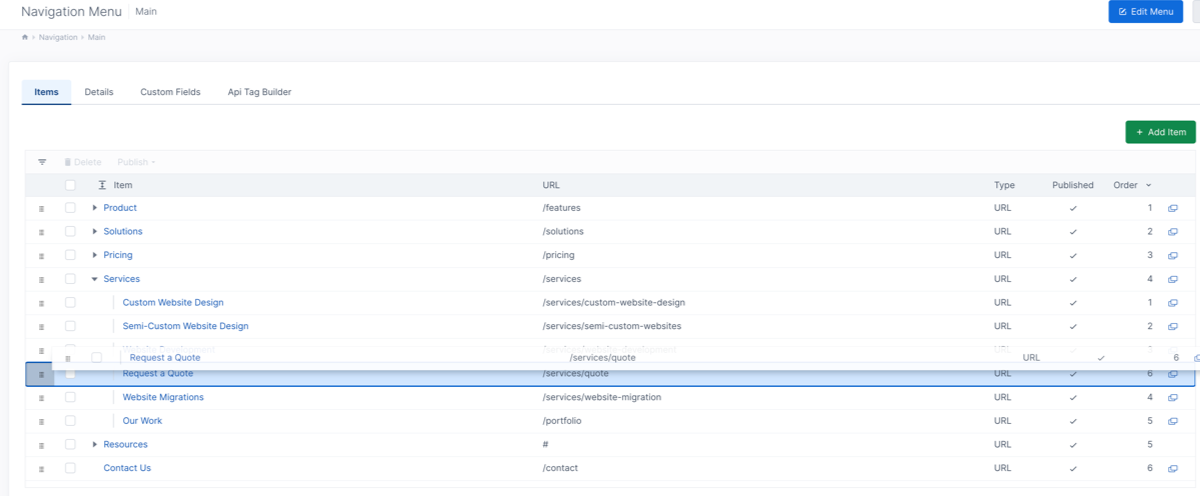
Added support for dragging and dropping table rows to reorder or reorganize table items.
The old admin support drag-and-drop reordering works for some items, but not for nested rows.
The new functionality supports dragging table rows up and down to reorder. You can click and hold on the "drag" icon on the left of the row, or click and hold anywhere on the row.
If the table supports nested rows, you can:
- Drag items up and down within the parent row.
- Drag items to the left or right to change the parent item.
- Drag a row and hover over another row to expand it and move the dragged row as a child to the other row.
- Drag an item out of its parent row to another row level.
This will be used to reorder and reorganize app items via drag-and-drop.
We initially set this up for navigation menu items and will add it to more tables soon. For navigation items, you can drag and drop to reorder items or to change the parent of an item.
November 20, 2025
Improved the preview feature of the Embed and YouTube components. Previously, previewing would show an error.
We also fixed an issue that prevented new public users from registering a new account.