Using the App API Call
Certain app attributes are used to get information from an app in your website and display that information as a field in the administration. An example scenario could be to associate certain profiles from the Directory app with a page to display their bios automatically on that page.
The attributes that use this functionality are:
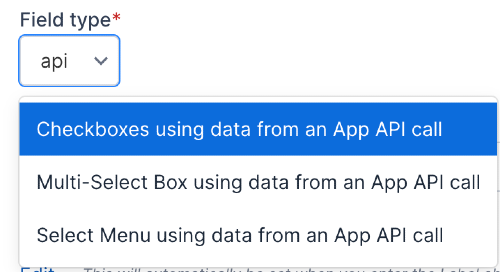
- Checkboxes using data from an App API call
- Multi-Select Box using data from an App API call
- Select Menu using data from an App API call
The data retrieved from the app API call is used to build checkboxes, a multi-select field, or a select menu.
To get started, choose one of the API attribute types above from the Field type field.
Then choose the parent attribute or attribute group to display the field under. Set the order that this field will show with the other attributes.
Types of API calls
Type API call is set in the API to call field.
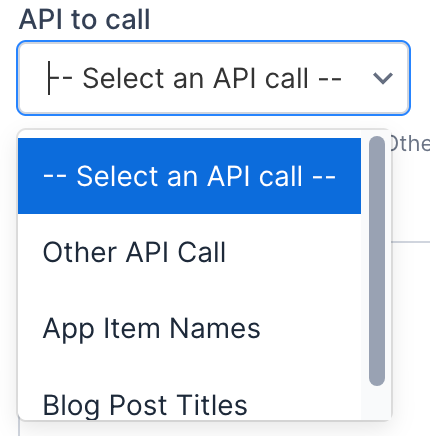
There are two types of API calls.
- Use the simple "item name" API calls to get just the names or titles of app items. With this choice, you usually don't need to set up a template for the API response.
- Make a different API call to get the app items. Do this by selecting the "Other API Call" value and then entering the API call in the text field that is displayed. You will need to set a template to process the API call and return the data for the form field.
Item name API calls
We recommend choosing one of the "item name" API calls from the API to call field, as they are easier to work with. Those API calls include:
- App item names
- Blog post titles
Select one of those values for the API to call field.
You do not need to create a template file to process the API call. By default, the system will return the correct item ids and item names.
Usually the only additional API data that you need to set is a value in the API call parameters field for the app instance ID if there are multiple instances for an app.
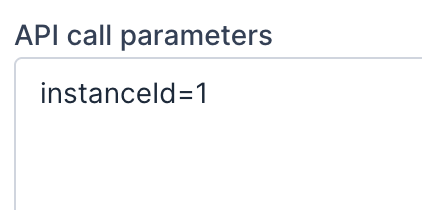
Because the "item name" API calls are simpler, only certain API parameters work with them. The following parameters can be used with the "item name" API calls.
- instanceId
- template
Other API calls
If you need to use a different API call then select "Other API Call" for the API to call field.
A text field will show below that field where you can enter the API call to make.
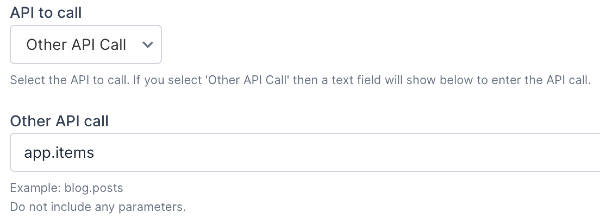
The format of the call should be app.apiType. Do not include any parameters in the field. These will be configured later in the API call parameters field.
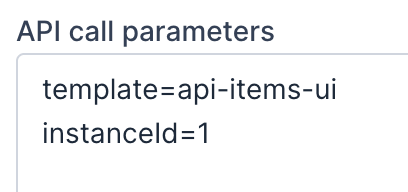
You will need to at a minimum set the "template" API call parameter. If your app has multiple app instances then you will also need to set the app instance id.
See the API field template section below for more information about API field templates.
API field template
You will need to set up a template to process the API call in one of two situations:
- You selected "Other API Call" for the API to call field.
- You need more control over the template output for "item name" API calls.
The API call uses the template to build an array of data that is then used to build the appropriate checkbox, multi-select or select menu field.
You need to create a template for the app that you are going to be making the call to.
Important: The data for the template comes from the same variable that you would use in a normal API call.
The goal of the template is to build an array of data where the key of each array value is the item id and the value is the text to display in the checkbox, multi-select or select menu.
Here is some sample code illustrating how to structure your content template. You use the set_api_attribute_value function to set the item id and text value.
{% for item in items %}
    {% do set_api_attribute_value(item.id, item.itemName) %}
{% endfor %}
In the example above, the items array contains all the gallery items (just like it would for a normal itemFilter API call).
Using the API value in templates
Like any other attribute, the values chosen within the attribute get saved to the variable that you use in your content layouts and templates. However, values chosen from an attribute that is generated through an API call only save the ID of the item selected. The saved IDs aren't very useful unless they are matched up to something.
To actually get the data for the selected item(s) you would make another API call in your content template.
Following the example, using the numerical IDs of the chosen gallery items, a variable is created using the setApi method that uses the ID to filter the data returned by the API from the gallery. Set the call you want to make using the call parameter, using the same formatting as you used when creating the attribute's API call configuration. The attr parameter contains the attribute (in brackets) that you would like to filter the results by.
{% if galleryItems %}
    {% set items = _api.gallery.itemFilter.attr({'id': galleryItems}) %}
{% endif %}
In this example, the variable items contains the returned items that match the item IDs provided.
The variable now contains all the information about the returned items. You can use this data in your content layouts and templates like you would in any content template in the gallery.
{% if galleryItems %}
    {% set items = _api.gallery.itemFilter.attr({'id': galleryItems}) %}
{% endif %}

{% for item in items %}
    <p><a href="{{ item.url }}">{{ item.itemName }}</a></p>
{% endfor %}
If you need to work with each individual gallery item you could do something like the following code.
{% if galleryItems %}
    {% for itemId in galleryItems %}
        {% set item = _api.gallery.itemFilter.attr('id', itemId) %}
        {% if item %}
            <p><a href="{{ item.url }}">{{ item.itemName }}</a></p>
        {% endif %}
    {% endfor %}
{% endif %}
Other Examples
Below are some other examples of using the API fields.
Getting Categories
Sometimes, when you have a blog or a calendar, you might want to create a Block that lets you display recent posts or upcoming events. You may want to have the option to filter those blog posts or calendar events by a category.
To do that, you'll want to use the categoryNames API. That will get only the category names and the category ID.
For a blog, you will use blog.categoryNames. For the calendar, you'll use calendar.categoryNames. (You can use the same categoryNames API call for any app that uses categories. Just replace "blog" or "calendar" with the app that you're using. For example, for the Members app, you would use members.categoryName, or for the General App, you would use app.categoryNames.)
For the "API to call" field, you'll enter the API call. For example, blog.categoryNames or calendar.categoryNames.
For the "API call parameters" field, you'll need at a minimum the template reference. For example, if your template file is called "api-category-filter.twig" then you'd enter
templateKey=api-category-filterBelow is an example of how that template can be set up. Because we want the option to not select a category, we'll use the set_api_attribute_value function to add an initial select menu option with no category value.
Then, we loop through the categories and use the set_api_attribute_value function to set the category ID and category name for each select menu option.
{% do set_api_attribute_value('', '-- No category filter --') %}
{% for category in categories %}
    {% do set_api_attribute_value(category.id, category.categoryName) %}
{% endfor %}