File Browser Files
Uploading a file
To upload a file into the file browser, first click on the folder that you want to upload files into.
Then click the "Upload" button. After clicking this, you can select your file from your computer.
The file will show at the top of the file list after it's been uploaded.

Search/Filter Files
You can search for files in the currently selected folder with the "Filter Files" button. (This does not search across all folders.)
Click the button with three lines next to the "Upload" button. After you click on this, you will be able to type in keywords to filter the list of files.

Viewing files in a list
To view the files in a list, click the first button on the right side of the file browser.

Viewing files in a grid
To view the files in a grid, click the second button on the right side of the file browser.

Reloading files
To refresh the files, click the circle arrow above the files.

Adding files
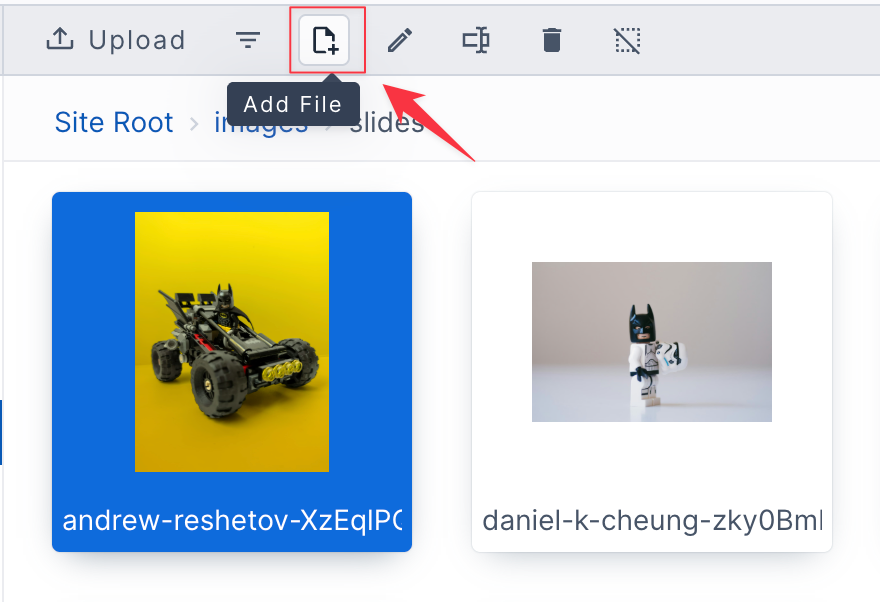
Add File allows you to create a new text file in the currently selected folder. When adding a file, you can enter a file name, select the appropriate file extension, and add the file’s contents.
To add a new text file to the file browser, click the button with the paper icon with the plus symbol in the corner.
Common examples of text files are template files, CSS files, and JavaScript files.
This is what you will see after clicking on Add File

Type in the name of your file under "File Name", then click the dropdown to select the type of file you would like to add, and finally type in your file code in the text box under "New File".


Once you are done, you have three options. "Save", which will save and exit out of the adding text files popup, "Save & Continue Editing", which will allow you to save what you added and continue to add to it or edit it, and "Cancel", which will exit out of the popup and delete anything typed in or selected in the popup.

Edit files
The files button with the pencil icon is "Edit Files". Selecting this option allows you to edit the currently selected file. The button is only enabled when a file is selected and is for text and image files only.
For text files, you can edit the file’s contents, file name, and file extension. For image files, you can crop, resize, and apply additional image effects.
For a complete overview of all available file editing options, please visit the page linked below.

Rename files
Rename File allows you to change the file name of the selected file. Once selected, a popup will show up with a text box where you can type in the new name.


Delete files
The trash can icon is the delete files button. Selecting this option deletes any selected file(s). After clicking the button, a confirmation popup will show, allowing you to either cancel or confirm the action.

Select/unselect all files
The next button is the Select / Unselect All button. When the icon appears as an empty square, clicking it selects all files in the folder you are in. When the icon appears as a square with a line through it, clicking it deselects all currently selected files.
The unselect option is only available when at least one file is selected and will unselect all the files.

