Improved and more powerful table filters
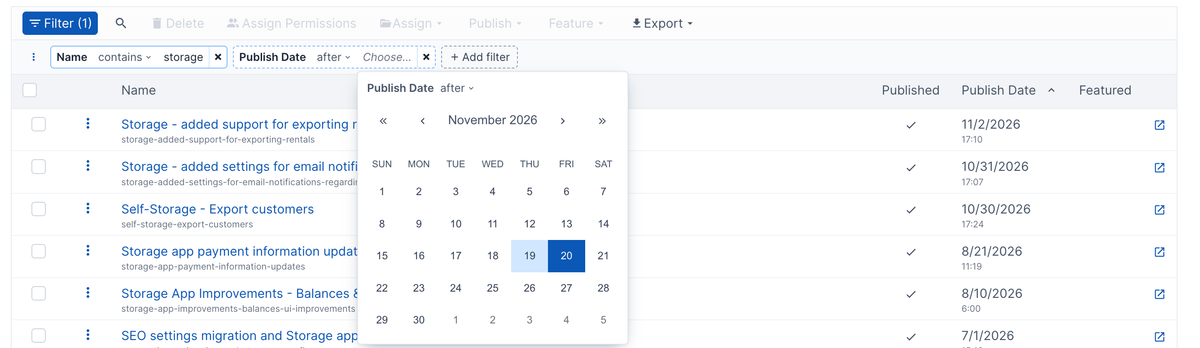
In case you didn't know, you can filter almost any data table by clicking the "Filter" button just above the table.
Previously, this showed some fields right above the table columns. The fields allowed you to search or filter some or all columns. While that worked, it was limited.
- It only worked with visible columns.
- It didn't support date or number filters.
- If the column was narrow, the filter was cut off.
- It lacked more advanced filters.
The new table filters let you add filters for all visible columns, hidden columns, and, in some cases, data that isn't included in the table. You can also include additional conditions with the filters, such as "contains", "does not contain", "is after", and more.
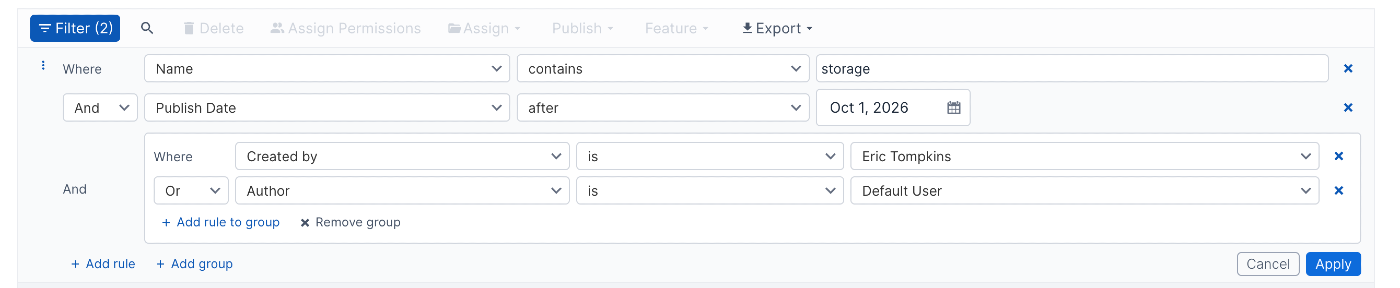
You can convert a filter to an advanced filter by clicking the three-dots menu button next to the filter. With the advanced filter, you can do "or" logic and group conditions together.
If you prefer a more free-form or GitHub-style search, you can click the search icon next to the filter button. That will show a text box where you can type your search. This is useful for quickly searching by whatever is in the first column.
Or, you can do "key:term" type searching. As you type, you'll get hints of data keys or values to search by. If you click the "?" help icon to the right it will show available data keys to search by and give basic instructions on searching.
