How to get to the Navigation Editor
Go to (1) Design in the Navigation Bar, then down to (2) Navigation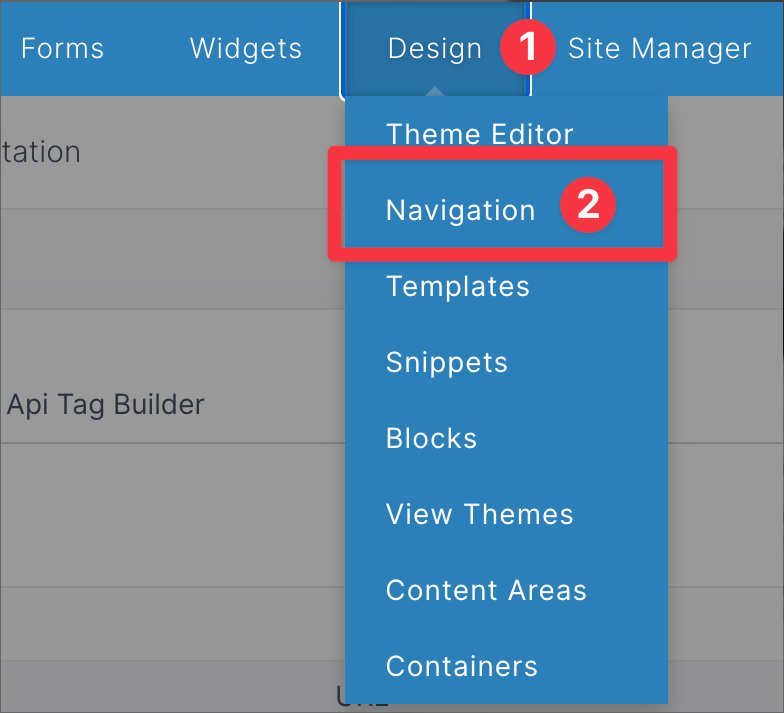
Adding a Navigation Menu
Go to the upper right and click the Add a Navigation Menu button
General Tab
-
Add your Navigation Menu Name
-
Choose a Navigation Template
-
Choose whether to show Sub Navigation when necessary, Never show it, or All the time

-
It is recommended that the Cache is kept on, the cache loads and displayed the navigation faster
-
The number changes how long it is cached
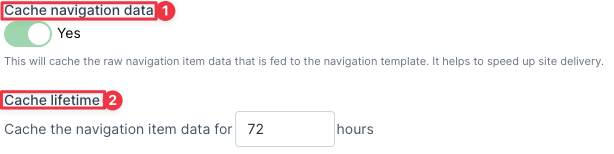
The values from these three fields are available in the Navigation Template, a developer can use them when building the HTML when building the Navigation Menu.
Header Tab
-
If you want text or content above the Navigation, use this
-
If you want content above the Navigation without using the Editor, use this.

Footer Tab
-
If you want text or content below the Navigation, use this
-
If you want content below the Navigation without using the Editor, use this.

How to Edit a Navigation Menu
(1) Click on the name to be taken to the editing page
(2) Click on the three dots and select Edit Navigation Menu

(1) Click on the Edit Menu button in the upper right to edit the menu
(2) Click on the three dots and then Delete Menu if you want to delete the menu

Saving a Navigation Menu
There are several ways to save a Navigation Menu
(1) Click on the Save Navigation Menu button in the upper right
(2) or click on the arrow button and select Save and Continue Editing. Or if you are adding a new Menu, then you have the option to Save and Add a New Menu.

- Keyboard shortcuts
- Mac (CMD+S) / PC (Ctrl+S) (to save and add another (when adding), or save and continue editing (when editing).
- Mac (CMD+ Shift + S) / PC (Ctrl+Shift + S) to save and go back to the list of navigation menus
Things to include here
- How to add get to adding a navigation menu.
- Go to Design -> Navigation
- Click on the "Add Navigation Menu" button on the right
- How to add get to editing a navigation menu.
- Go to Design -> Navigation
- Click on the navigation menu that you want to edit
- Click on the "Edit Menu"
- OR, from the navigation menu page, click the vertical three dots next to the menu and then on the "Edit navigation menu" button
- Saving
- When adding, you can click the Save Navigation Menu button to save and go back to the list of items. Or, click the toggle next to the save button and choose "Save and Add Another" to save the menu and add another menu.
- When editing..... (describe similar to adding)
- Keyboard shortcuts
- Mac (CMD+S) / PC (Ctrl+S) (to save and add another (when adding), or save and continue editing (when editing).
- Mac (CMD+ Shift + S) / PC (Ctrl+Shift + S) to save and go back to the list of navigation menus
- Brief description of each field in the form. (H2 Heading: "Field descriptions")
Do an H3 heading for each tab.