How to Sort and Filter Pages
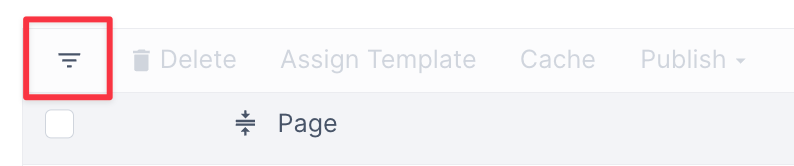
To filter and sort your pages, first click the upside-down pyramid in the top-left of the Pages section.
There are a couple ways to sort by (1) Page Name. You can sort the pages alphabetically by clicking on Page, sorting the pages as a-z, or z-a. Using the bar below, you can search for a specific page by name.
You can sort pages by (2) Template by selecting a template.
You can also sort the pages by the (3) publication status.
You can sort pages on whether they are (4) hidden or not.
You can also sort pages by the (5) Cache.

How to View SubPages
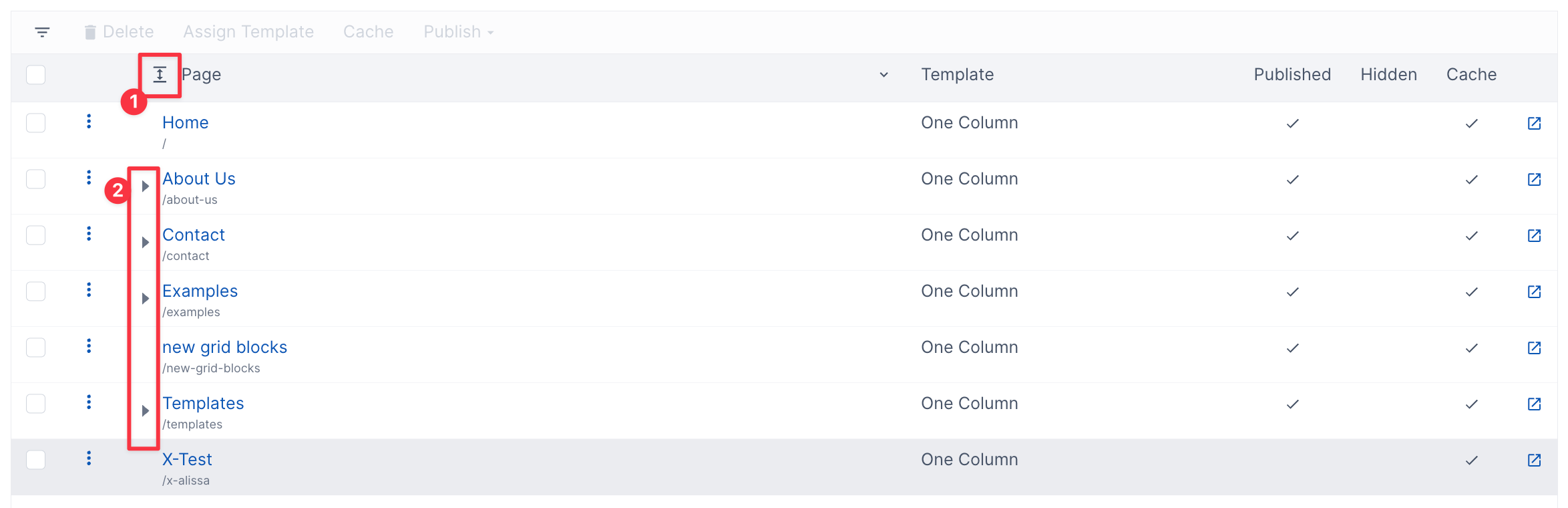
Click the (1) icon next to Page, this will expand all the pages on the editor, revealing all subpages as well.
To Collapse all pages, simply click on the (1) icon next to Page.
If you only want to expand one page to view its sub-contents, you can click on the (2) triangle next to the page's name. If you want to collapse a certain page’s subpages, then click the (2) triangle next to the page’s name.
The Action Button
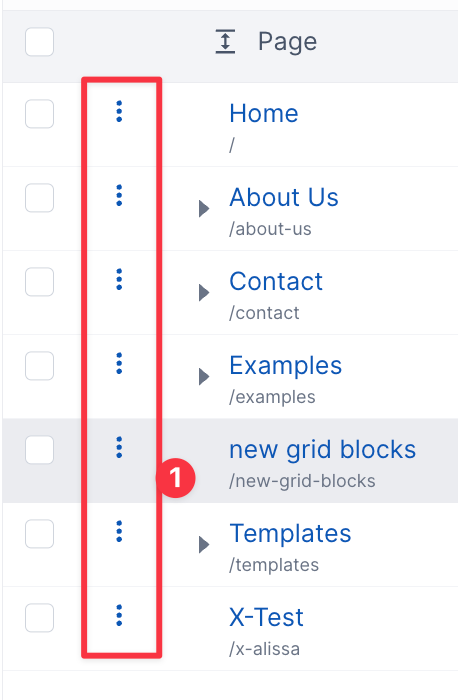
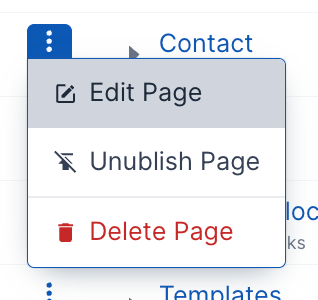
The Action Button gives you the option of Editing a page, Unpublishing a page, or Deleting a page.
The Tool Bar
To use the Tool Bar, you must first (1) select a page.
Delete - deletes all selected pages
Assign Templates - assign certain templates to all selected pages
Cache - changes cache settings for all selected pages
Publish/Unpublish - publishes or unpublishes any selected pages

View Page in the Site
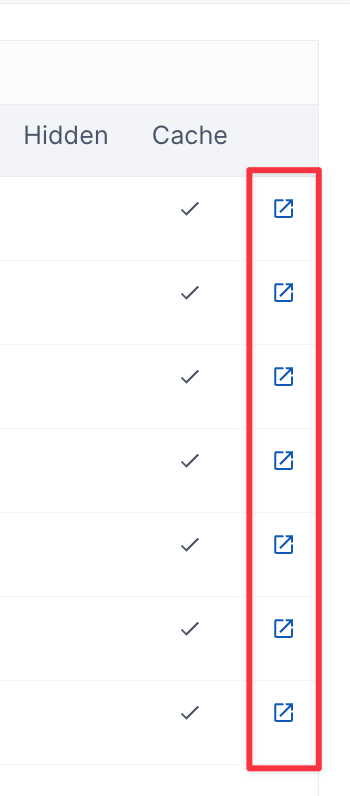
To view the official page on you website, click the icon to the far right on the page you wish to view.
The Action Button Upper Right
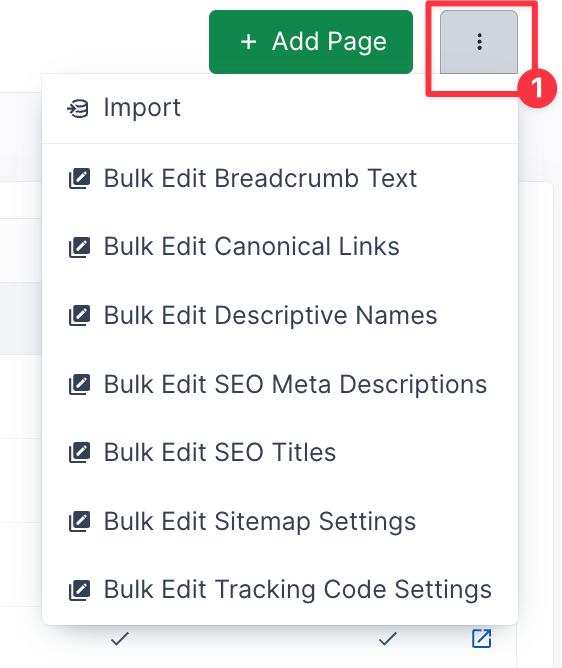
Click the (1) three dots in the upper right, here you can import a file, and bulk edit.