How to Edit a Page
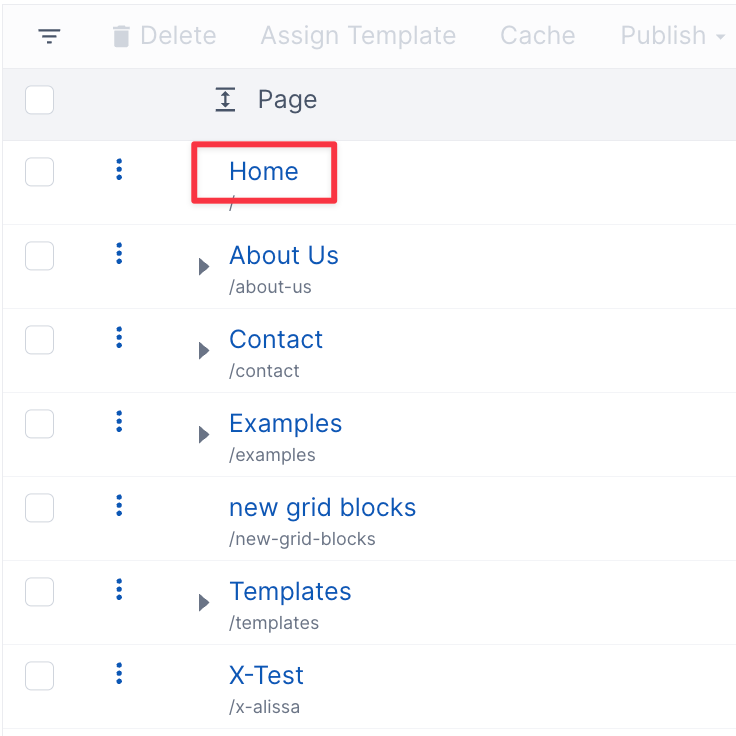
To edit a page, first select the page you need to edit. To select a page, click on the page's name.
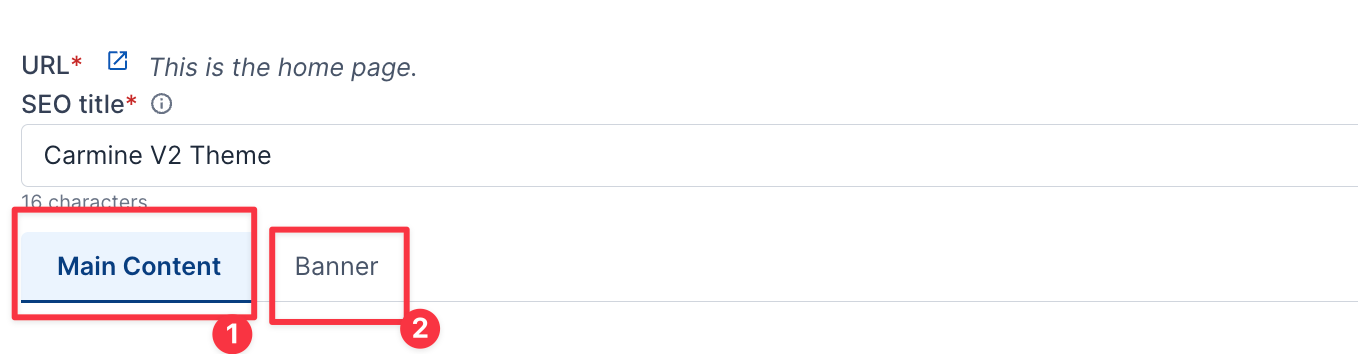
Content Area
They are site-specific. By default there is a (1) Main Content area. If the site is set up for multiple editable areas, like a (2) Banner or Header, then they will show as a tab if the page template uses that content area.
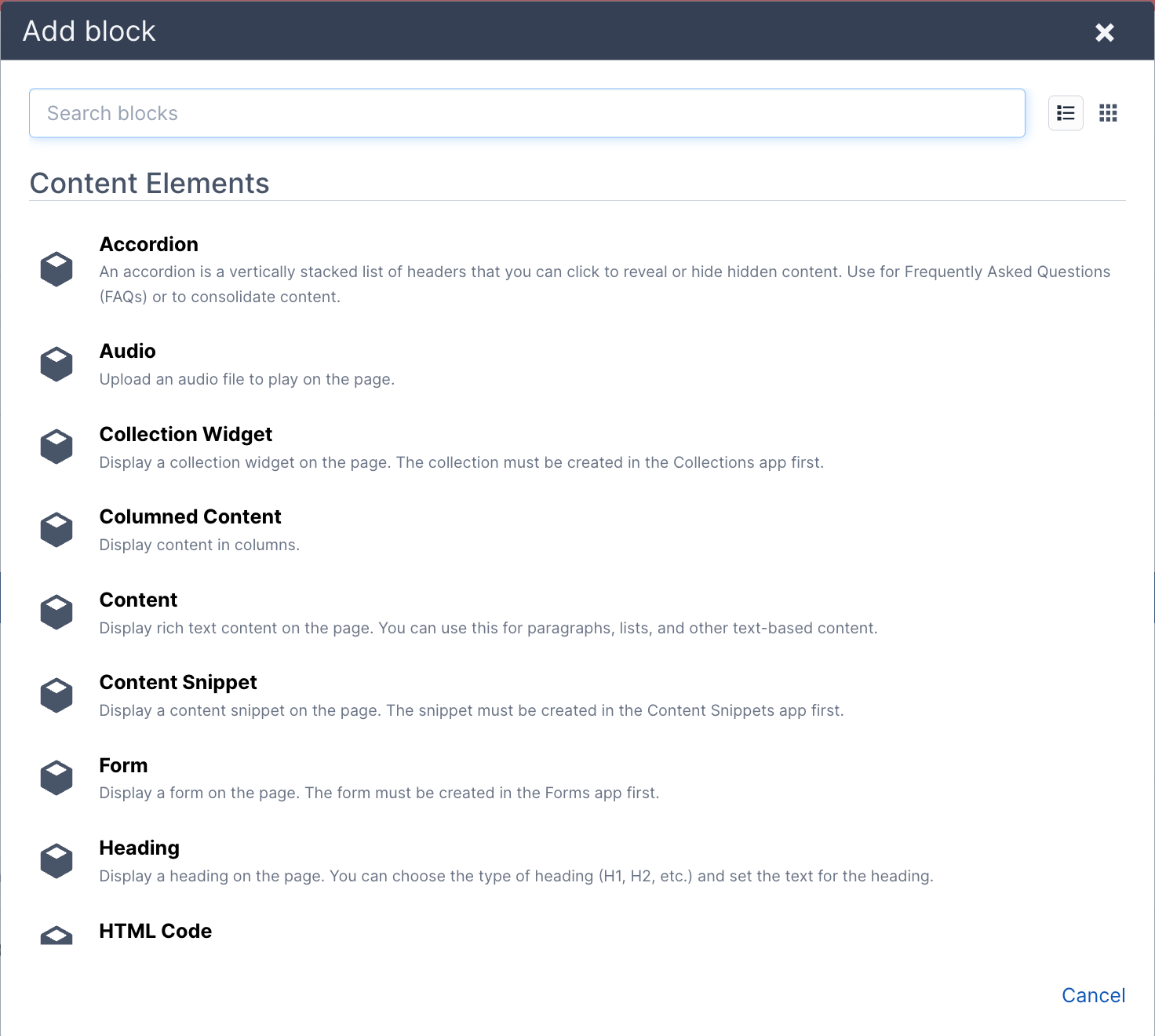
To add content to your page, click Add Block, then select the type of content you need for your page. You can have many blocks per page.

Edit Settings

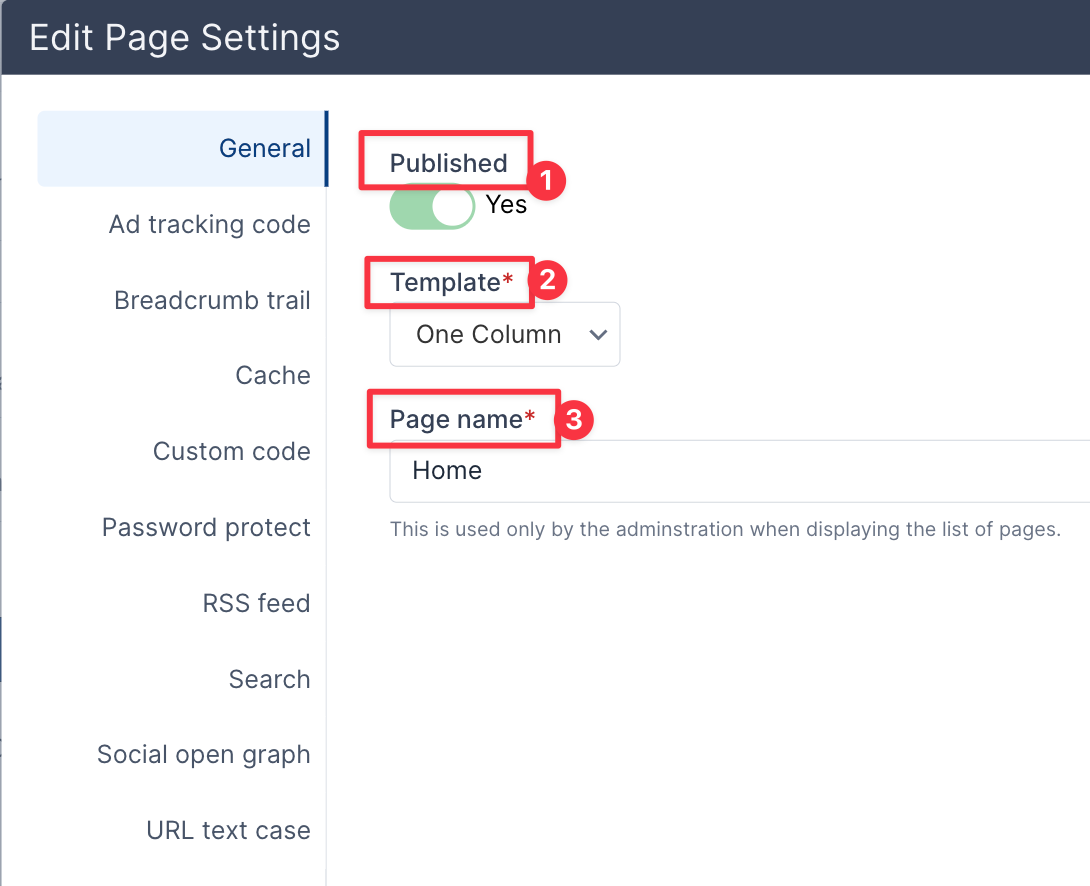
In the General tab, you can (1) Publish or Unpublish the page. This is also where you can change the (2) Template of the page. You can also change the (3) Name of the page.
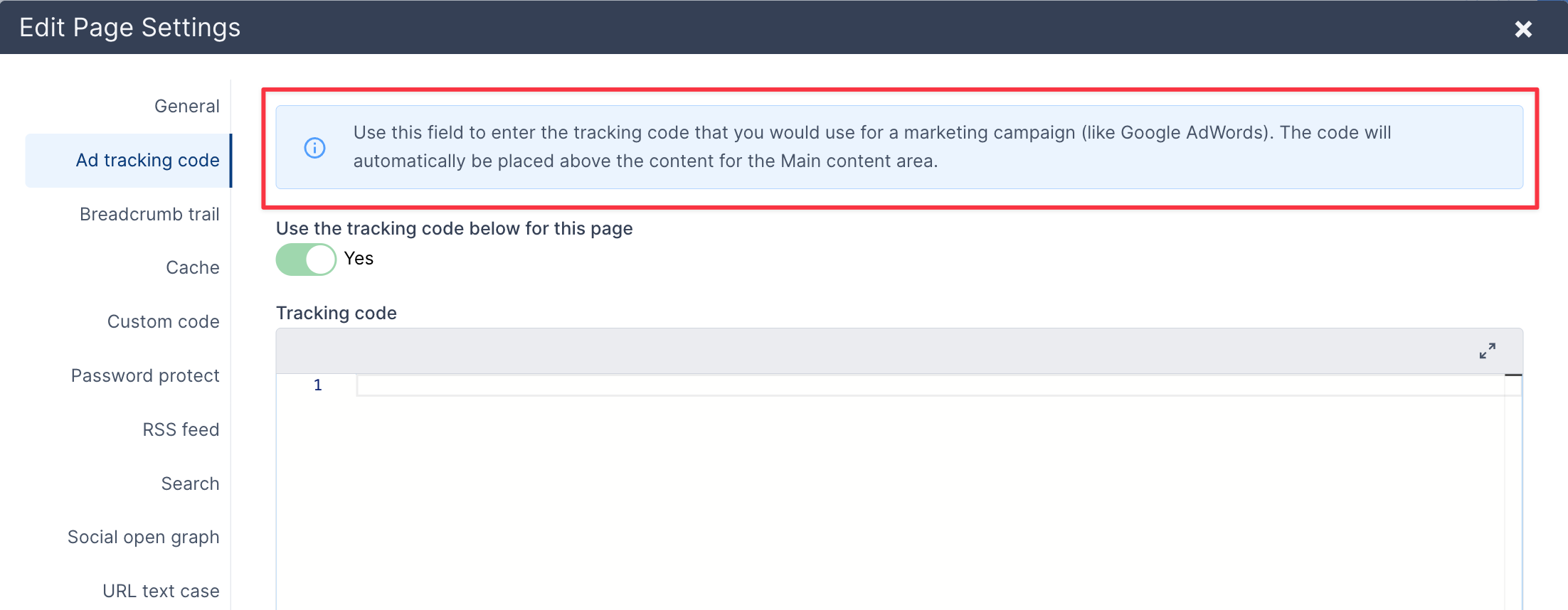
The Ad Tracking Code Tab is where you can enter code for a marketing campaign.
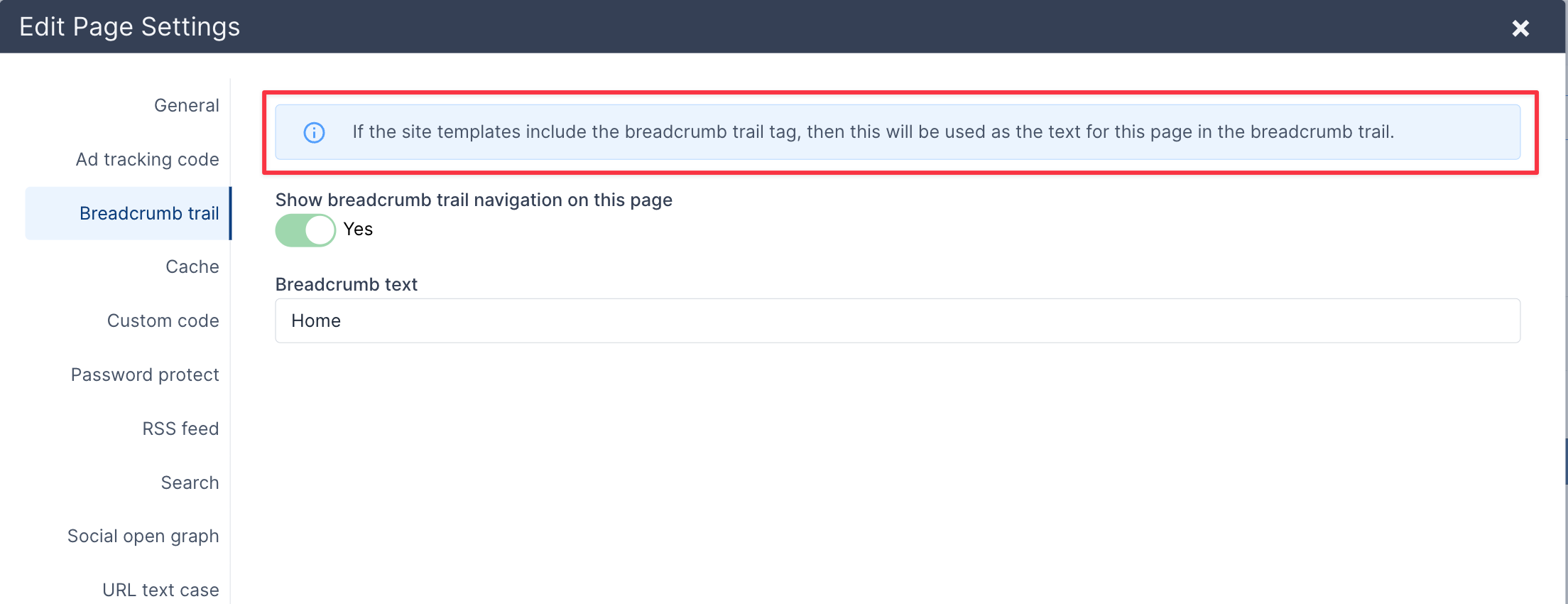
The Breadcrumb Trail Tab is where the breadcrumb text can be changed.
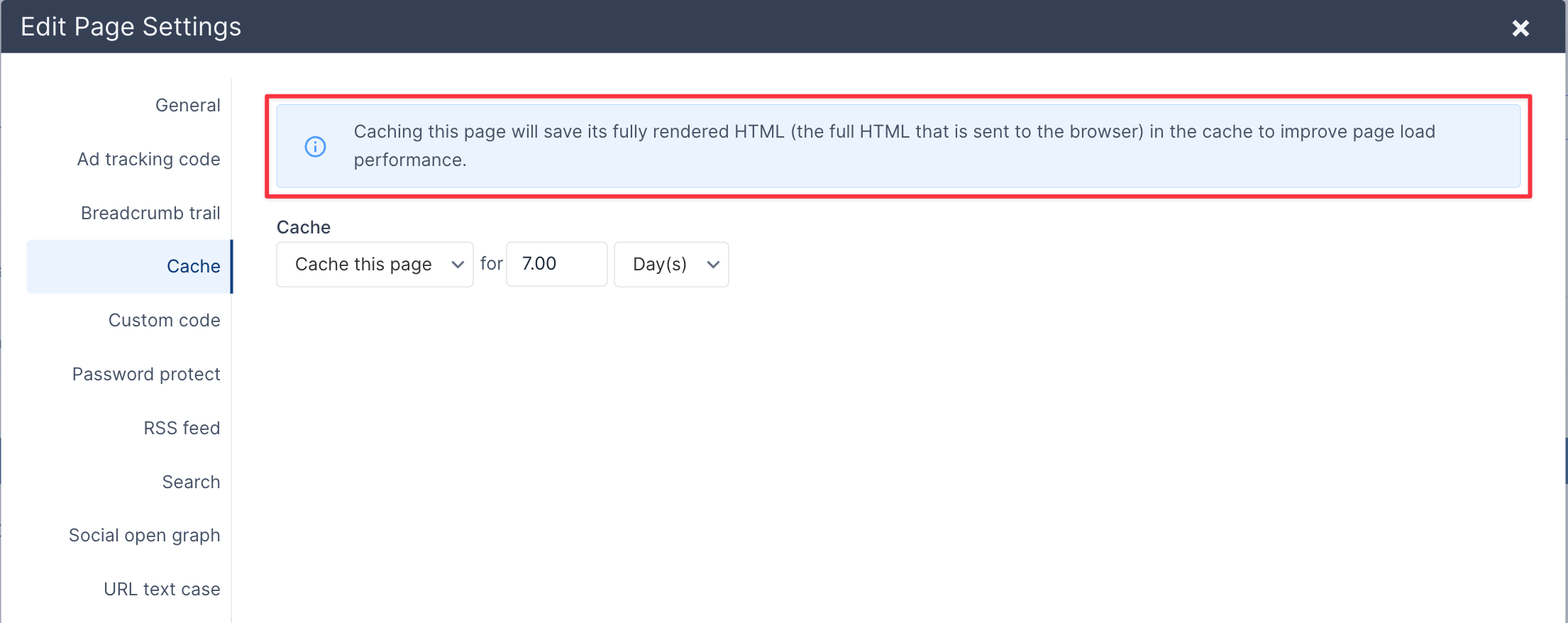
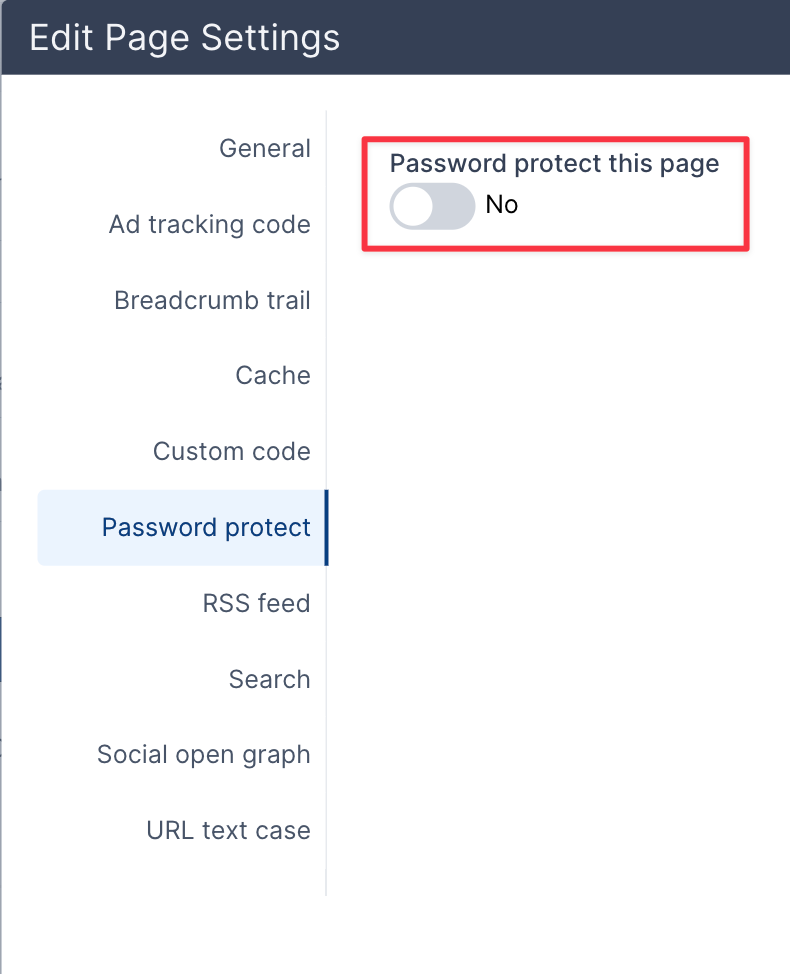
This is where a password can be set of for the page, this password would be only for this page, not other pages.
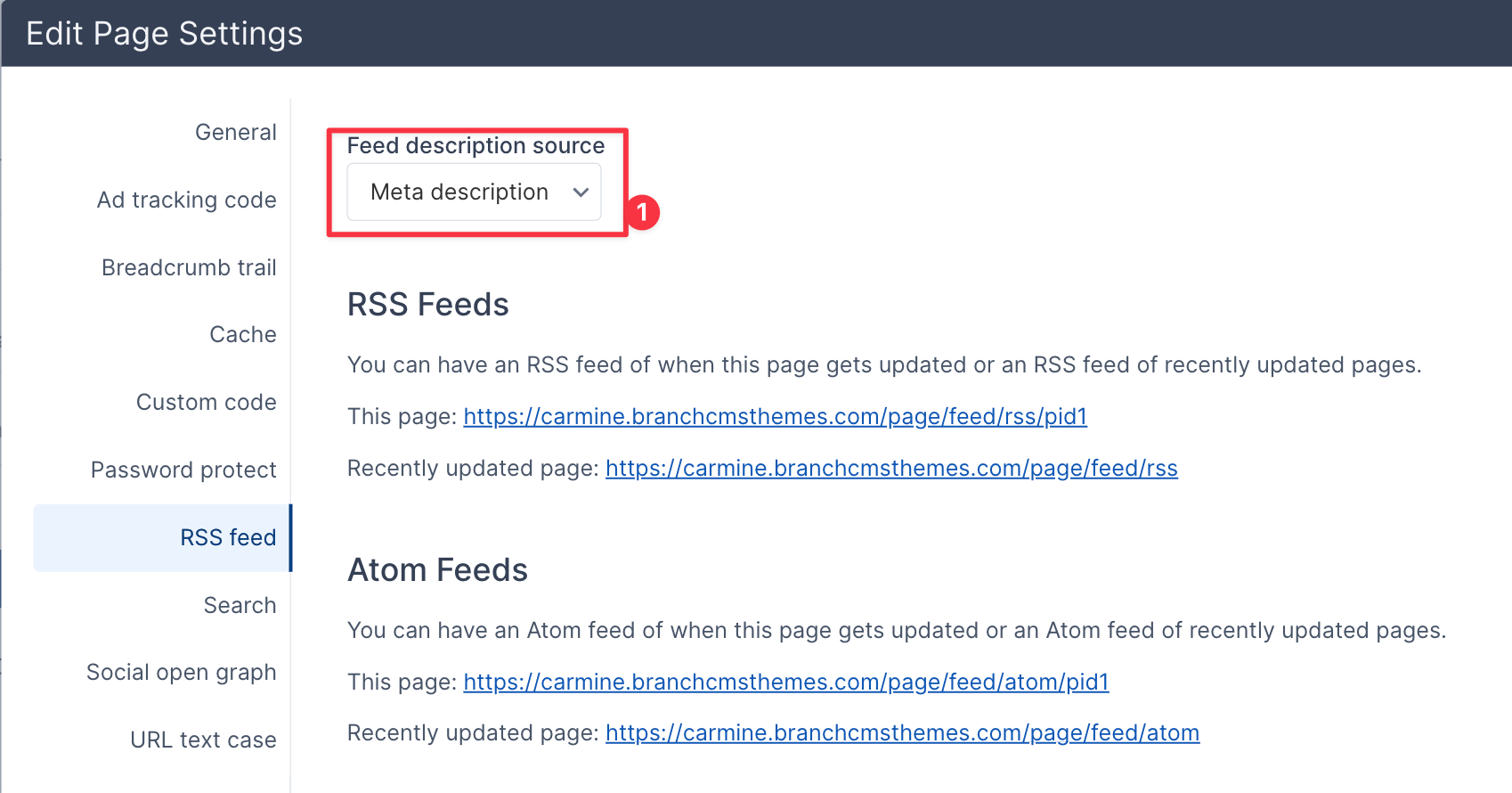
This is where you can change the (1) Feed Description Source, Meta Description, or a Custom Description.
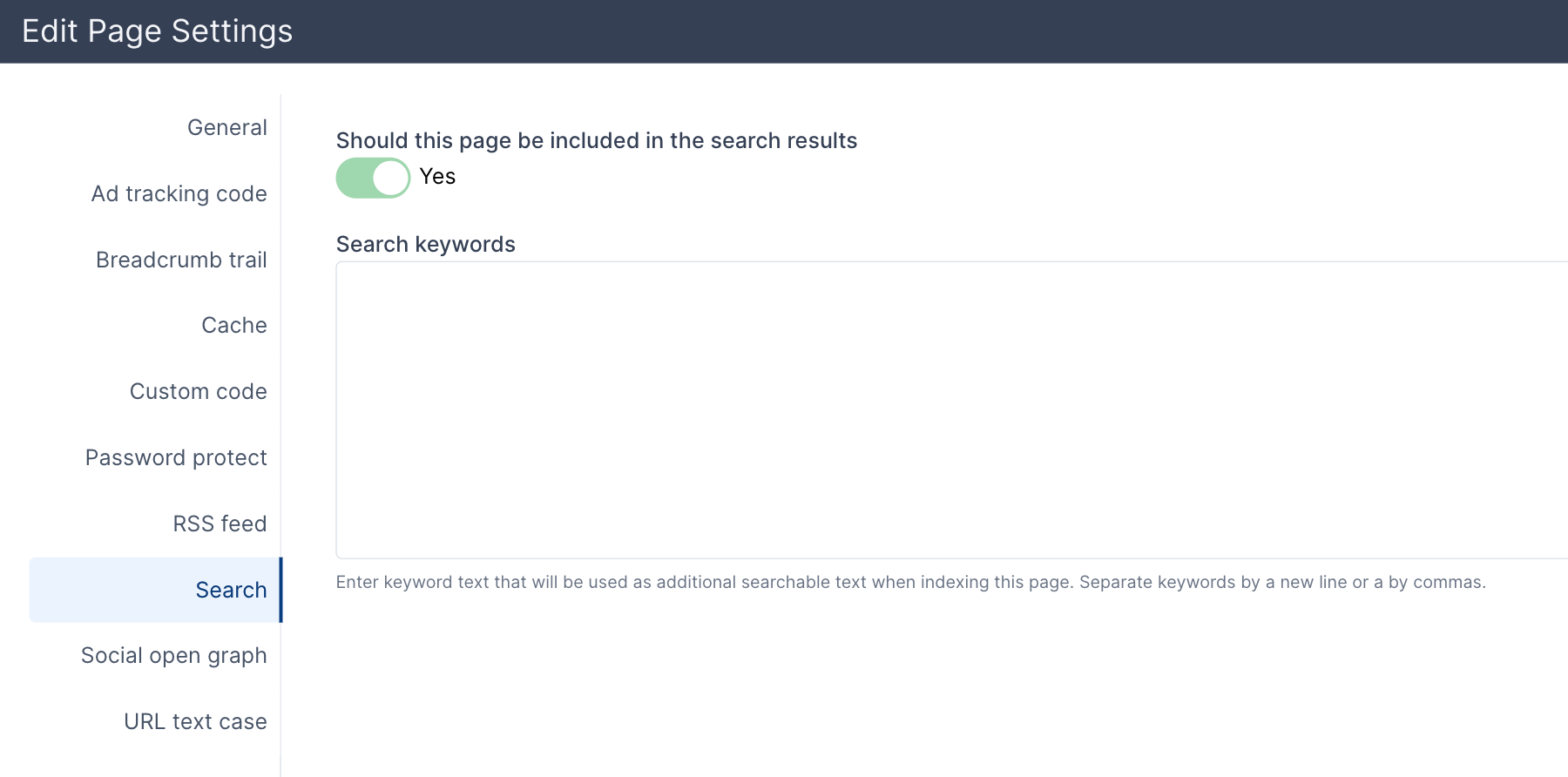
This is where keywords can be set up for specific search results.
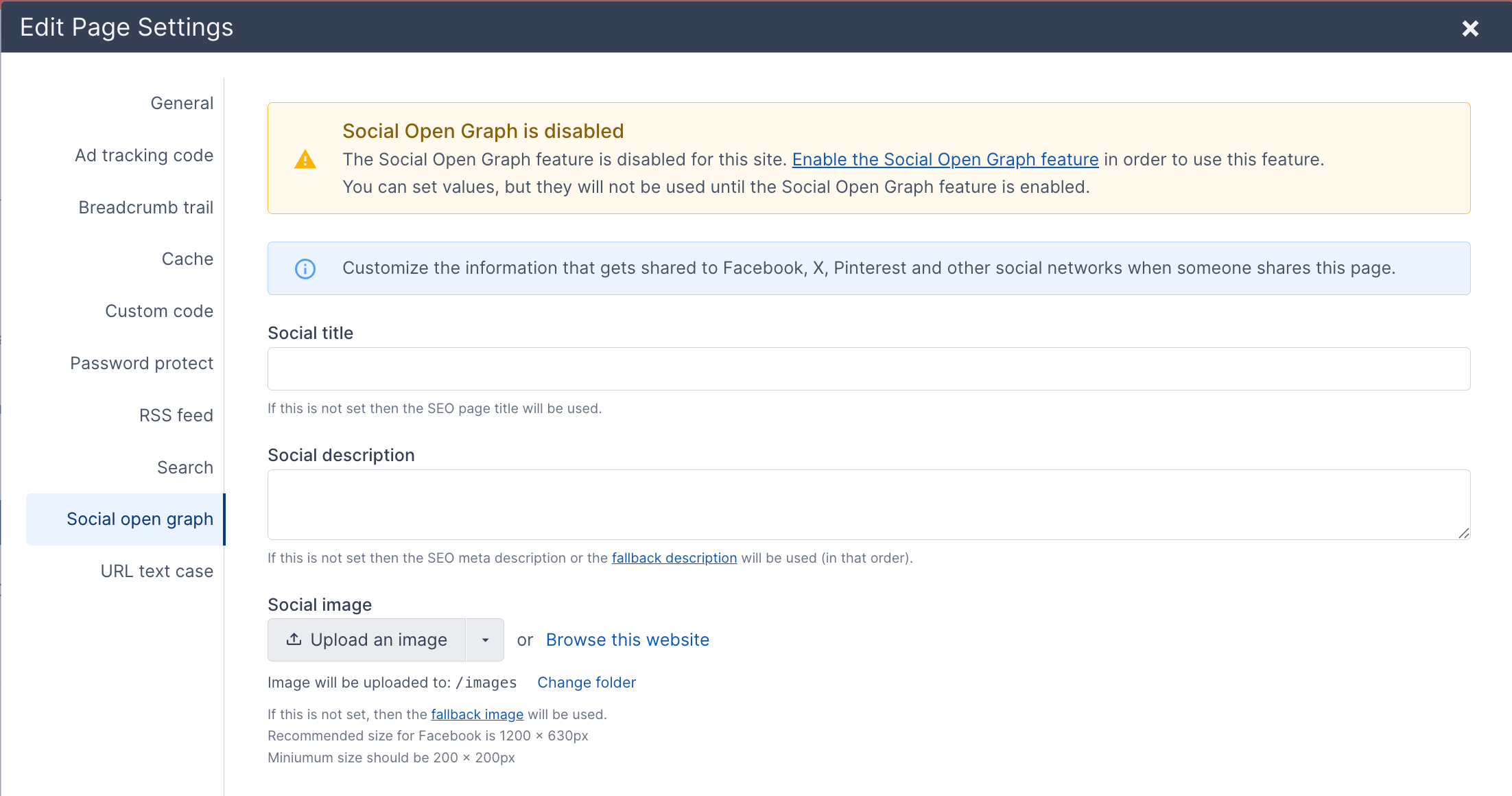
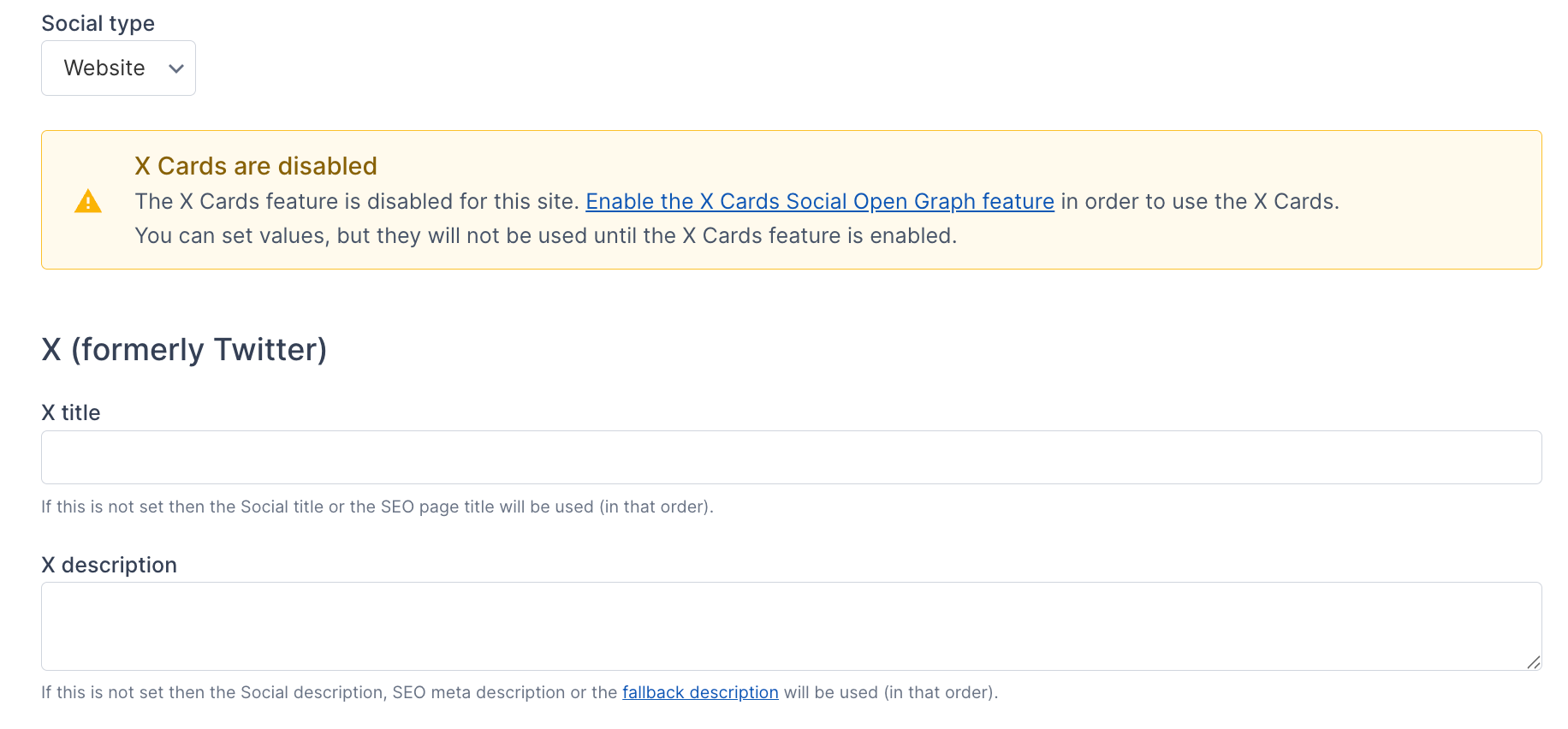
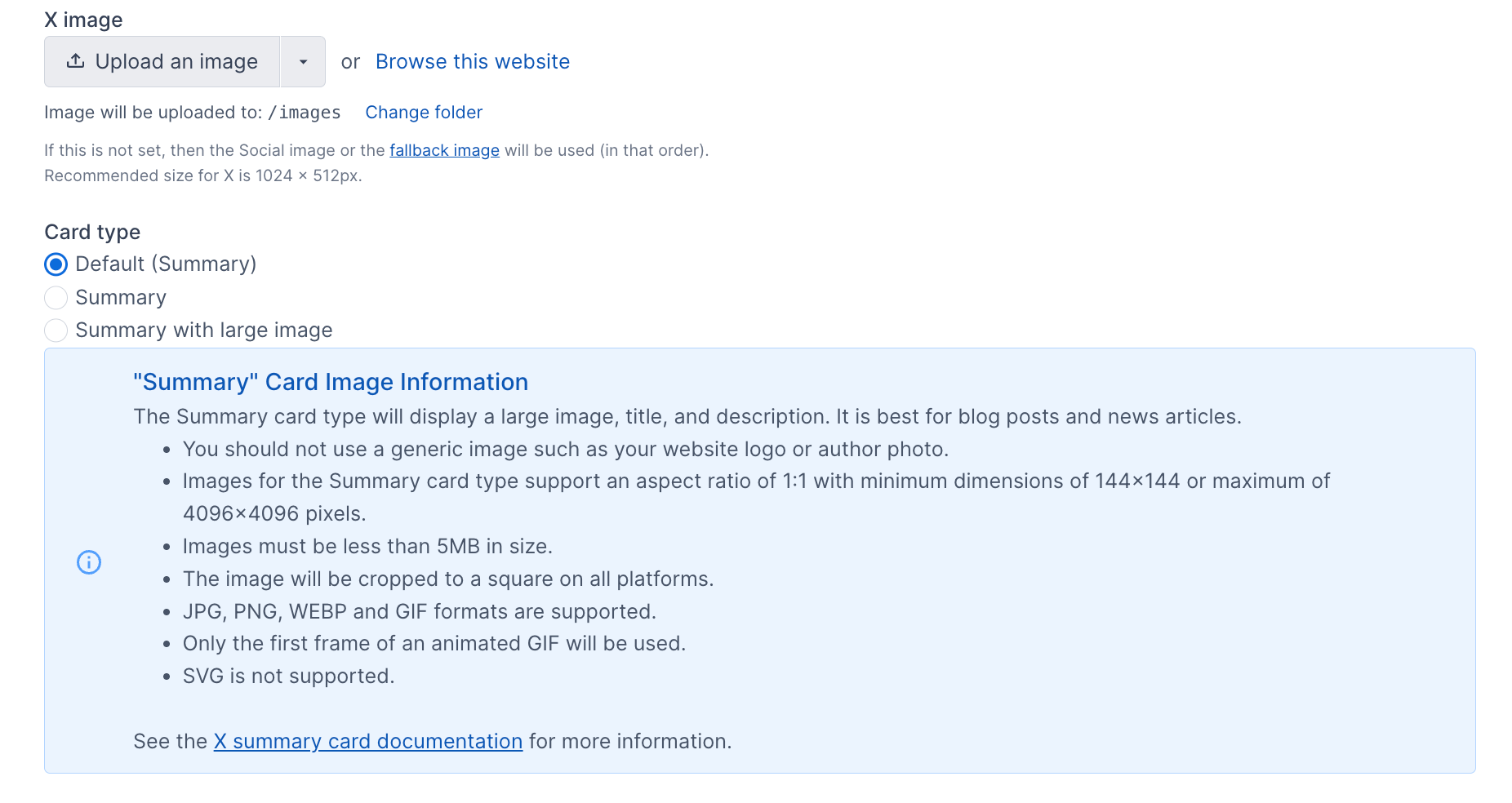
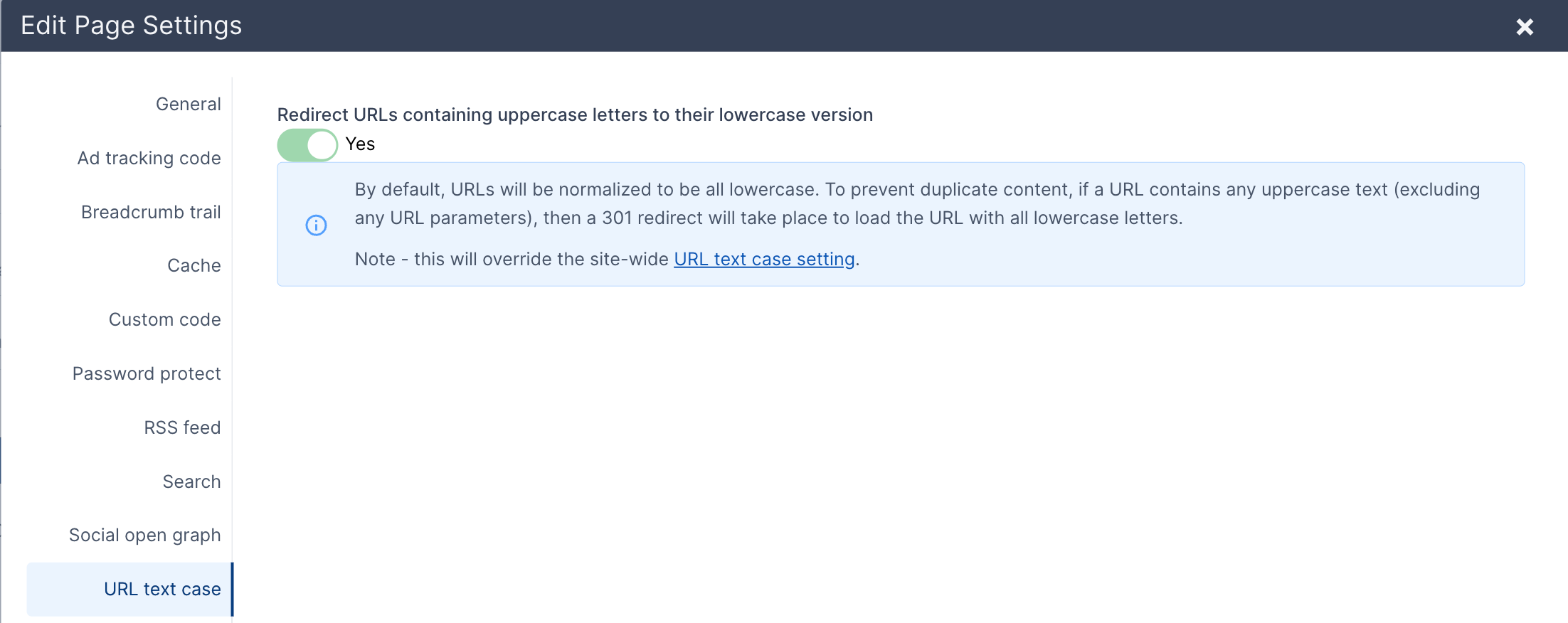
The Social Open Graph tab is where the title, description, and image are set for sharing the page on social networks
Page History
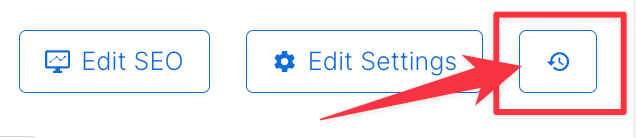
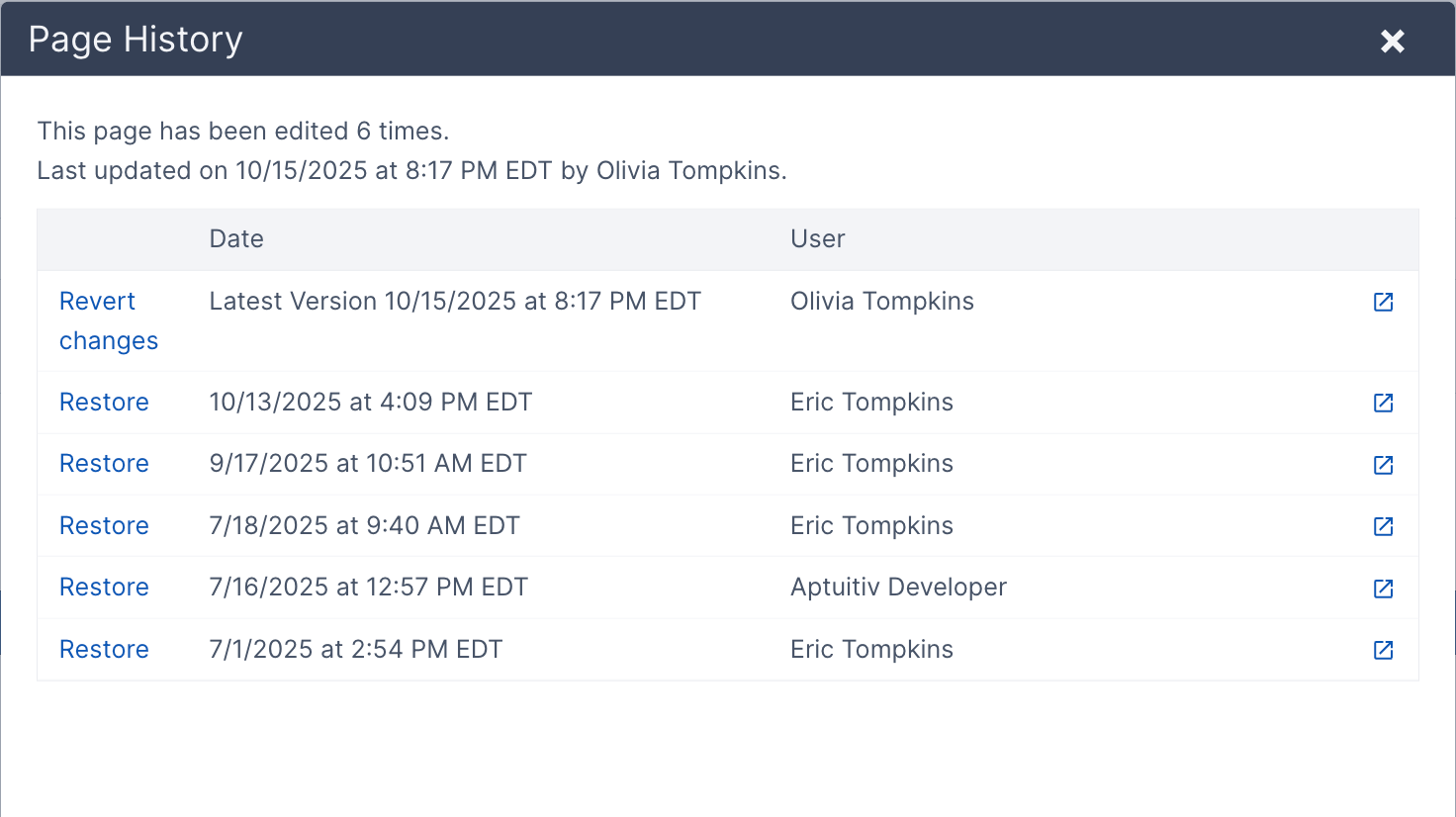
Click on the Clock Icon to view the page history. The Page History shows all edits done to the page. You can restore previous versions of the page here.
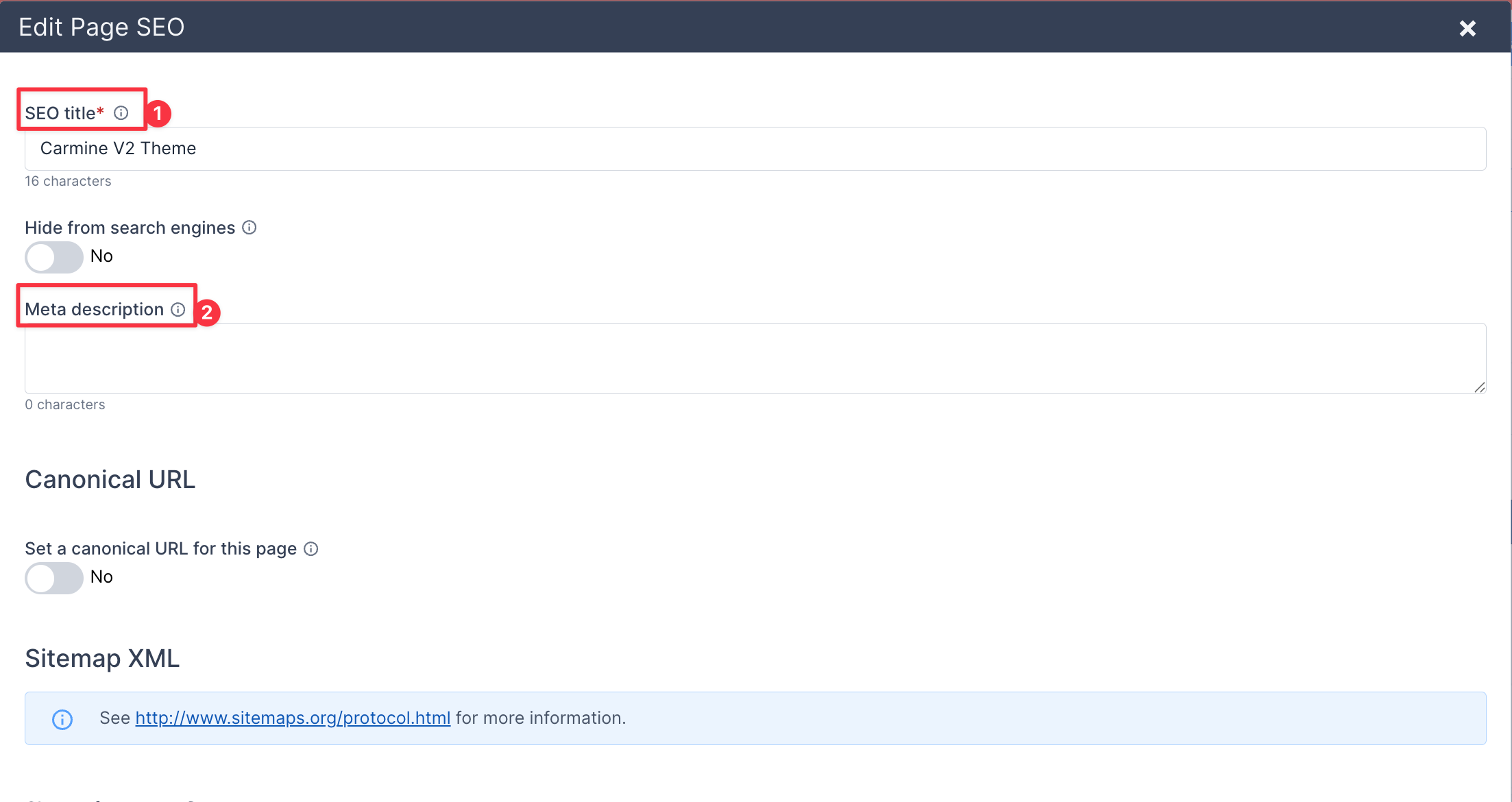
Edit SEO
This is the Edit Page SEO, this is where you can edit the (1) SEO title. The (2) Meta description is a brief description of the page.
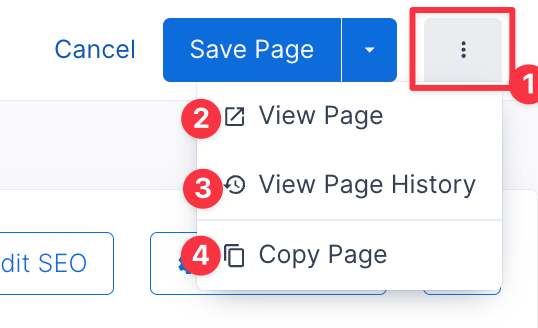
The Action Button
Click on the (1) button with the three dots. Click (2) View Page to view the actual page on the website. Click (3) View Page History to view the pages edit history, here you can restore past page histories. Click (4) to duplicate the page.
Save Page
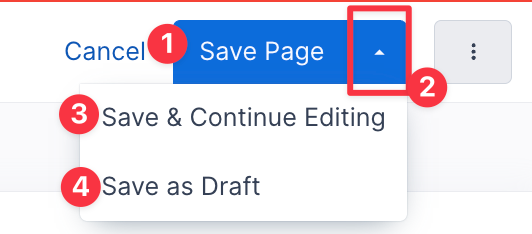
To save the page and return to Pages, click (1) Save Page. To save the page and continue editing the page, click the (2) arrow, then select (3) Save & Continue Editing. To save the page as a draft, click (4) Save as Draft.