How to View Navigation Item
Go to (1) Design in the Navigation Bar, then down to (2) Navigation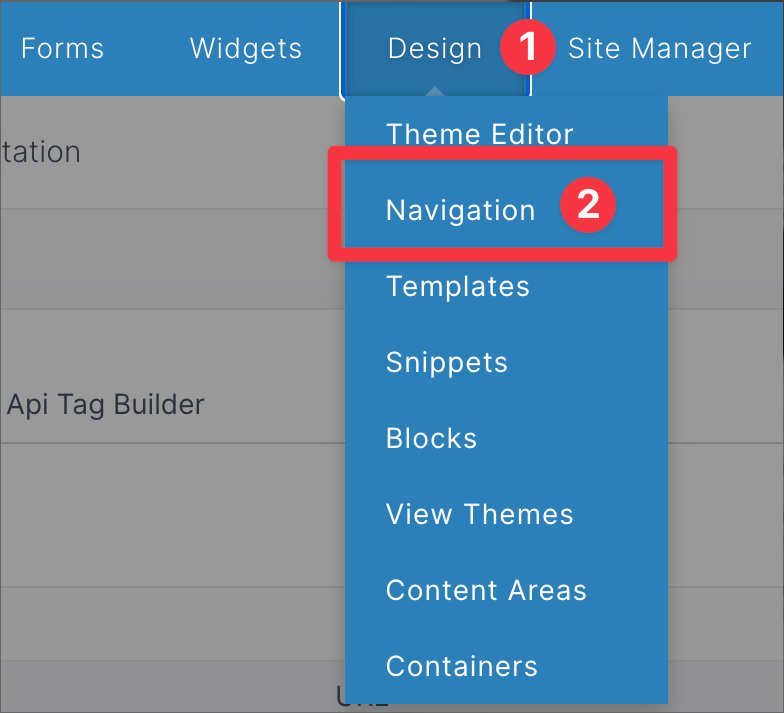
Choose a Navigation menu to view the Navigation Items

Then choose the Navigation Item you want to view

How to Filter your Items
(1) You can click on the Item button and filter alphabetically, or search for a specific Item in the search bar below
(2) You can filter by URL alphabetically, or search for a specific URL in the search bar below
(3) You can filter by the Type of Item, whether it is a URL or something else
(4) You can filter by the Publish status of a Navigation item here

Expanding for Sub Navigation Items
To expand a Navigation Item, first click the (1) arrow, then you should see the (2) Sub Navigation Item you need.


Deleting a Navigation Item
To delete one or more Navigation Items, first select (1) a checkbox, and then click on Delete.
To delete all Items, select the (2) box and then (3) Delete

Publish a Navigation Item
To publish one or more Navigation Items, first select (1) a box, and then click on Publish.
To publish all Items, select the (2) box and then (3) Publish
To Un-Publish Item, follow the same steps, just choose Unpublish instead of Publish

Adding and Editing Items
To add and/or edit an Item please visit Adding and Editing Items
Things to include here
- How to add get to viewing navigation items
- Go to Design -> Navigation
- Click on the navigation menu that you want to view items for
- Things you can do on this view
- Viewing items
- Filter items
- Expand or collapse an item to view sub-items
- Add item (link to the add item page)
- Delete one or more items (how to do it)
- Publish or unpublish one or more items (how to do it)
- Clicking the item to edit it
- Viewing items