How to Navigate the Administration of Your Website

At the top of the page, there are your main sections of the administration of your website. These each have a dropdown menu for the content of that section
- Content
- Apps
- Forms
- Widgets
- Design
- Site Manager
- Users
- Settings
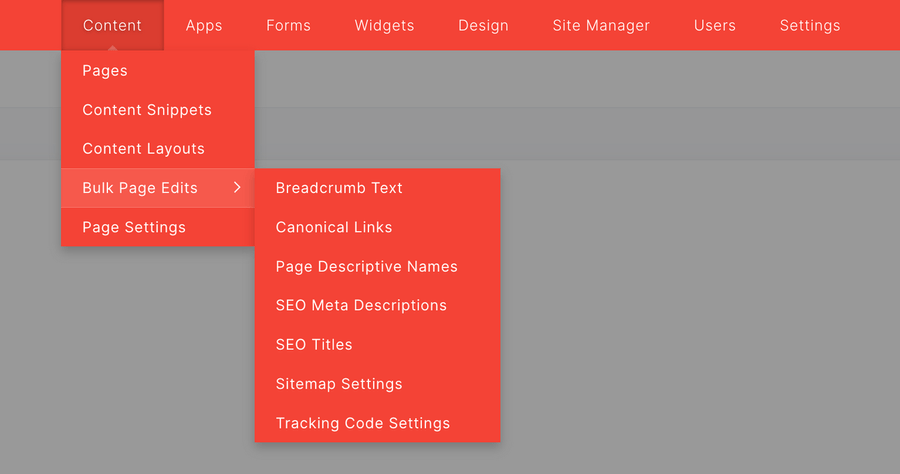
In the Content section you will find:
- Pages - Where all the main content for your website will be
- Content Snippet
- Content Layout
- Bulk Page Edits
- Page Settings

The App section is where any app add-ons are located, for example on this site, there is the Blog. Clicking on the app add-on to view the sections of that app.
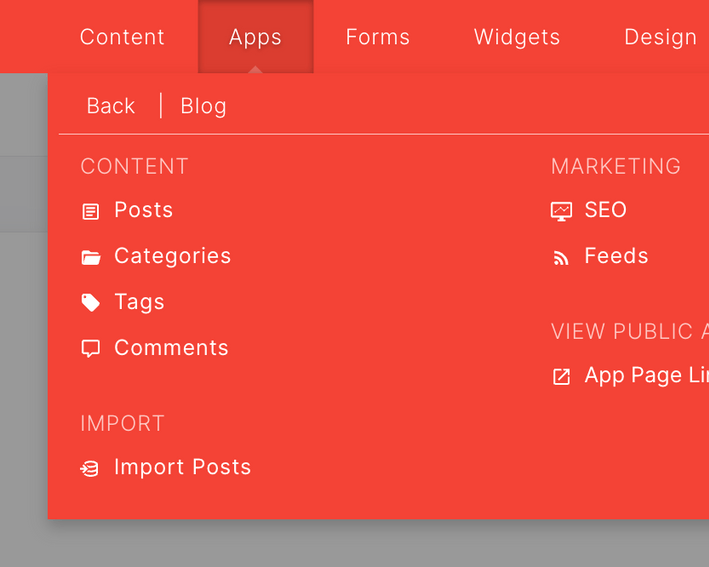
This is an example of what will pop up when you click on an app add-on. Each section has their own headings to help organize, and can be expanded to view the sub-navigation of each item. These are the sections and items of the Blog app add-on.
Content - where content parts of blog can be worked on
- Posts
- Categories
- Tags
- Comments
Import - this is where you can import content
- Import Posts
Marketing - this is where the app SEO options and RSS Feed Links can be found
- SEO
- Feeds
View Public App Pages -
- App Page Links
Configuration & Design - this is where app Configuration and Designs Items are founf
- App Pages
- Attributes
- Attribute Groups
- Forms
- Instances
- Settings
- Templates
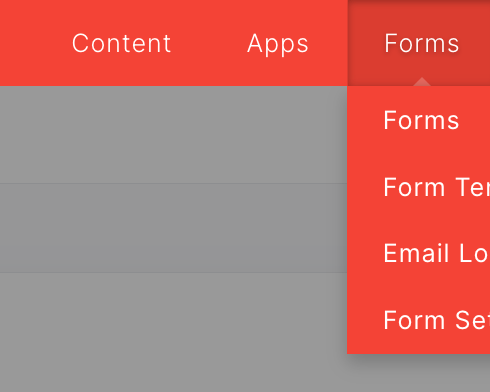
The Forms tab is where Forms, Form Templates, Email Log, and Form Settings can be managed.
The Widgets tab contains the Collections and Feed Reader Widgets.
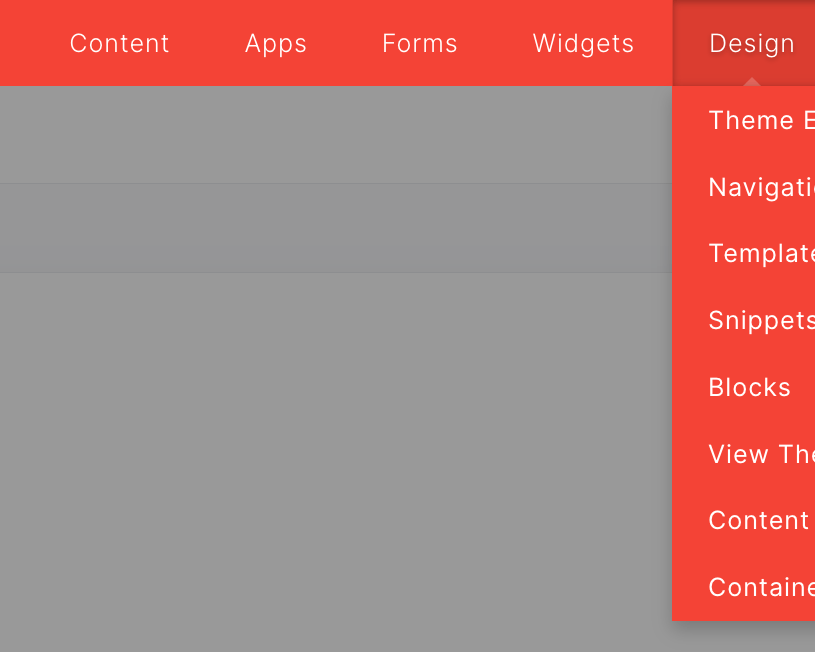
The Design Tab is where you can find
- Theme Editor
- Navigation
- Templates
- Snippets
- Blocks
- View Themes
- Content Areas
- Containers
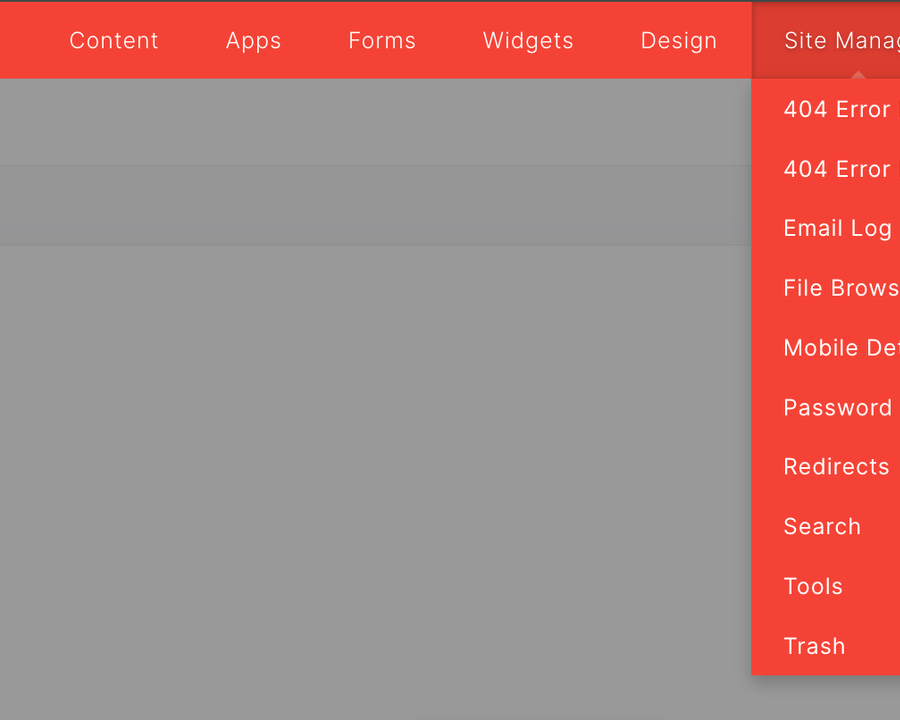
The Site Manager Tab is where you can find the tools to manage
- 404 Error Log
- 404 Error Page
- Email Log
- File Browser
- Mobile Detection
- Password Protect Paths
- Redirects
- Search
- Tools
- Trash
The User tab is where you can manage the accounts for your site, such as
- Admin Users
- Authors
- Public Accounts
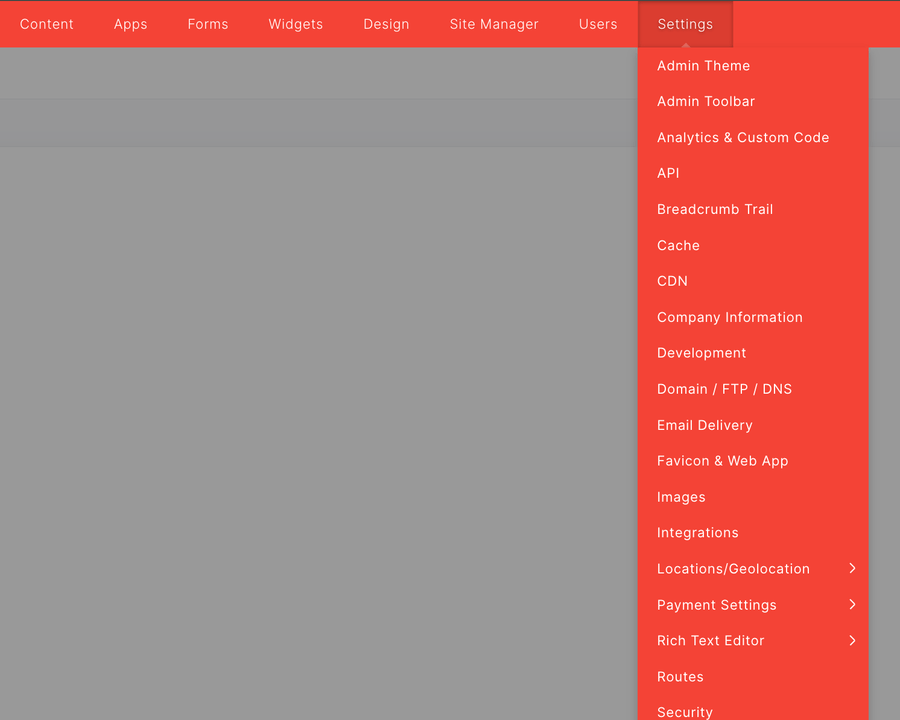
The Settings Tab is where you can find links to the different Configuration Areas